
Last updated November 24, 2026
How to Use the Focus Evaluator App

In this post
Focus lets you earn money by reviewing real legal cases and sharing your opinions. Getting started takes five steps:
- Download the Focus Evaluator app.
- Create your account and complete the ID check.
- Turn on notifications so you hear when a case opens in your county.
- Read the case material and answer the questions.
- Set up payouts in Stripe to receive your fees. Each case pays a set number of evaluators: the first to submit.
This guide explains how to get started, find cases, get paid and fix common problems.
How can we help?
- Joining: create your account and verify your identity
- ID check or county: if the ID check doesn’t finish, fix a wrong county or change your county after you move
- Cases: if a case isn’t in the app and how paid places work
- Payments: find a missing payment, set up payouts or find your tax documents
- Your account: sign-in problems, get a copy of your data, delete your account or contact support
- Referrals: invite a friend
To reach support, email support@joinfocus.com.
Getting started
How Focus works
Law firms and insurance companies use Focus to learn how people in a particular county see a case. They open the case to evaluators who live there. In the app, you read the case material, which can include a summary of what happened, documents, photos and video, and you answer questions about it. The firm sees your answers under an evaluator number. Focus doesn’t show it your name or contact details. Its report shows your answers next to general facts from your sign-up questions, such as your county, age range and education.
To join, you must be at least 18 and live in the United States. You need a phone or tablet, and a driver’s license or state ID card that shows your home address. Joining and evaluating cases are free. There’s no subscription, and Focus never takes money out of your account.
- Half of fees reached the bank within 3 days of the evaluator submitting the evaluation. Fees wait longer when payouts aren’t set up yet.
- 3 days
- Half of fees reached the bank within 2 days of arriving in Stripe, and nine in ten within 4.
- 2 days
- Half of evaluations took 17 minutes or less, and three in four took about 28 minutes or less.
- 17 min
Source: Focus’s records, checked November 24, 2026. Evaluation time covers the 975 evaluations submitted in the 90 days ending November 24, timed from opening the case to submitting it. We left out the 58 that took three hours or more, which leaves 917. Payout time covers the 1,074 case fees Focus sent to evaluators’ Stripe accounts in the 120 days ending November 24 whose next Stripe payout had reached the bank. Each of those payouts included the fee. We counted calendar days from the day Focus sent the fee to the payout’s arrival date, and left out 20 fees whose next payout hadn’t reached the bank. Time from submitting to the bank covers all 1,262 case fees earned on evaluations submitted in the same 120 days, counted in calendar days from the day the evaluation was submitted, in US Central time, to the arrival date of the payout that carried the fee. Of those fees, 736 arrived within 3 days and 1,045 had arrived by November 24. The other 217 hadn’t: 197 were waiting for the evaluator to set up payouts, and for 20 the next payout hadn’t reached the bank.
Download the app
Install Focus Evaluator from the App Store on iPhone or iPad, or from Google Play on Android. On your home screen, the app is called Focus. Cases open only in the app. There’s no website version for evaluators, and the sign-up on Focus’s website is for law firms and insurers.
Create your account
- Tap Join Focus. Enter your US phone number, tap Send code, then enter the 6-digit code from the text message.
- Enter your legal name as shown on your ID.
- Enter your email, choose a password and enter it again under Confirm password. Then tap Create account.
- Open the link in the verification email. Back in Focus, tap Check verification status if it appears. If the email doesn’t arrive, check your spam folder or tap Resend verification email. If the address on screen is wrong, tap Use a different email.
- On How it works, tap Get started. Choose your state and county, then answer the short questions about your background and your views. You answer them once.
The ID check comes next.
If you signed up on Focus’s website by mistake, the app shows Your cases are on the web. Email support@joinfocus.com and say you meant to join as an evaluator.
If you already have an account, Account and privacy explains how to sign in.
Verify your identity
After your account is set up, the app asks you to verify your identity. You do this once, before your first case.
You need a driver’s license or state ID card that shows your home address, plus a selfie. A passport won’t work because it doesn’t show your home address. Find good light, lay your ID flat, avoid glare and hold your phone still.
On Identity verification, tap Start verification. If the main button says Verify in your browser, tap that instead. Follow Stripe’s prompts to photograph your ID and take a selfie. If you used the browser, return to Focus when you finish.
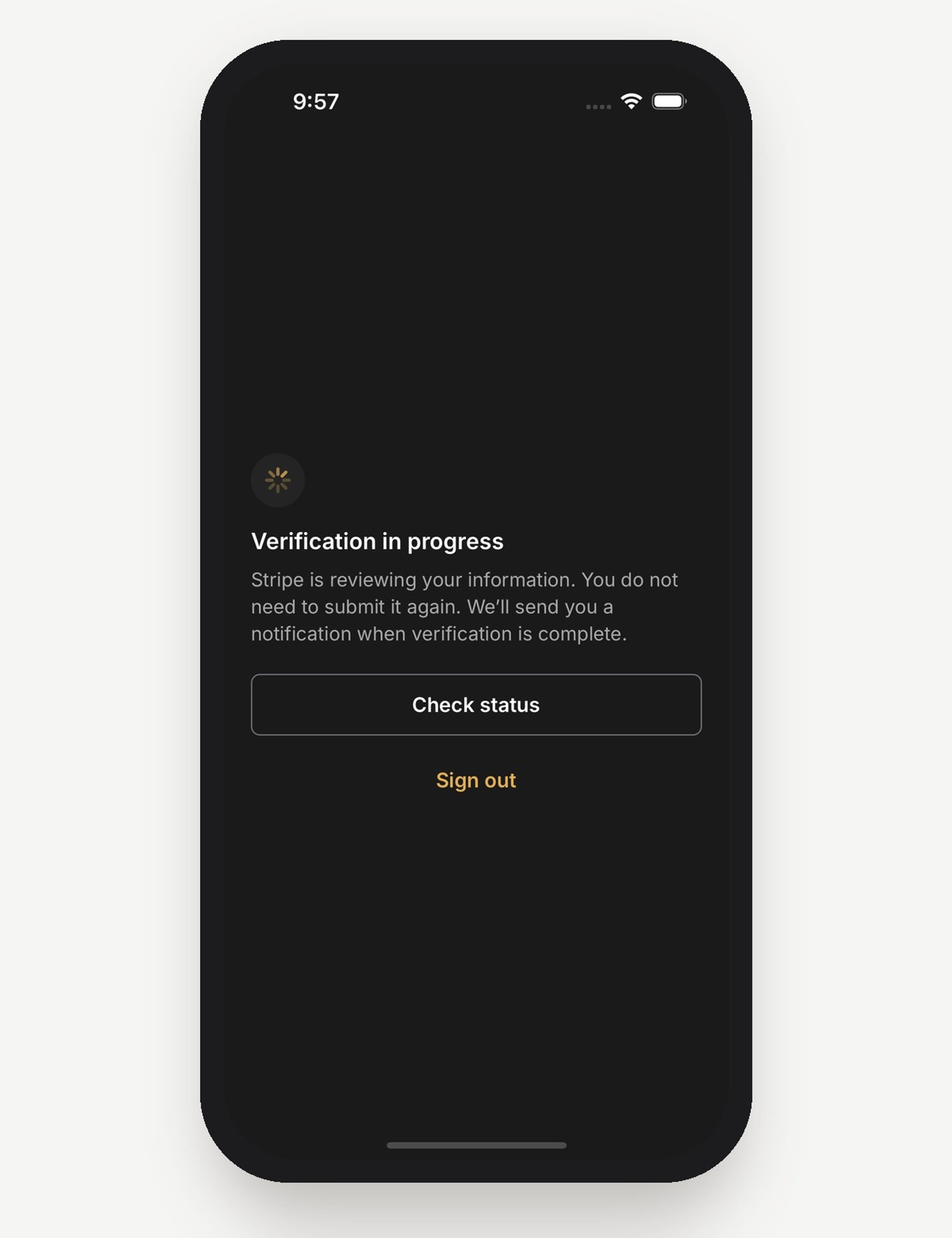
Verification submitted or Verification in progress means Stripe has your information. You can leave and come back, or tap Check status for an update.
If the check doesn’t go through, Identity and location matches what the app shows to what to do next.
Why Focus checks your ID
Firms rely on Focus for answers from real adults in a particular county. The ID check confirms three things: that your selfie matches the photo on your ID, that you’re at least 18, and which county you live in. It also means you can complete each case only once, even if you later create another account.
The check’s screens come from Stripe, which runs it for Focus and also handles payouts. Stripe handles the photo of your ID and your selfie. Focus receives the name, date of birth and address from your ID, and never shares them with the firm behind a case. Never email photos of your ID to Focus.
Find your first case
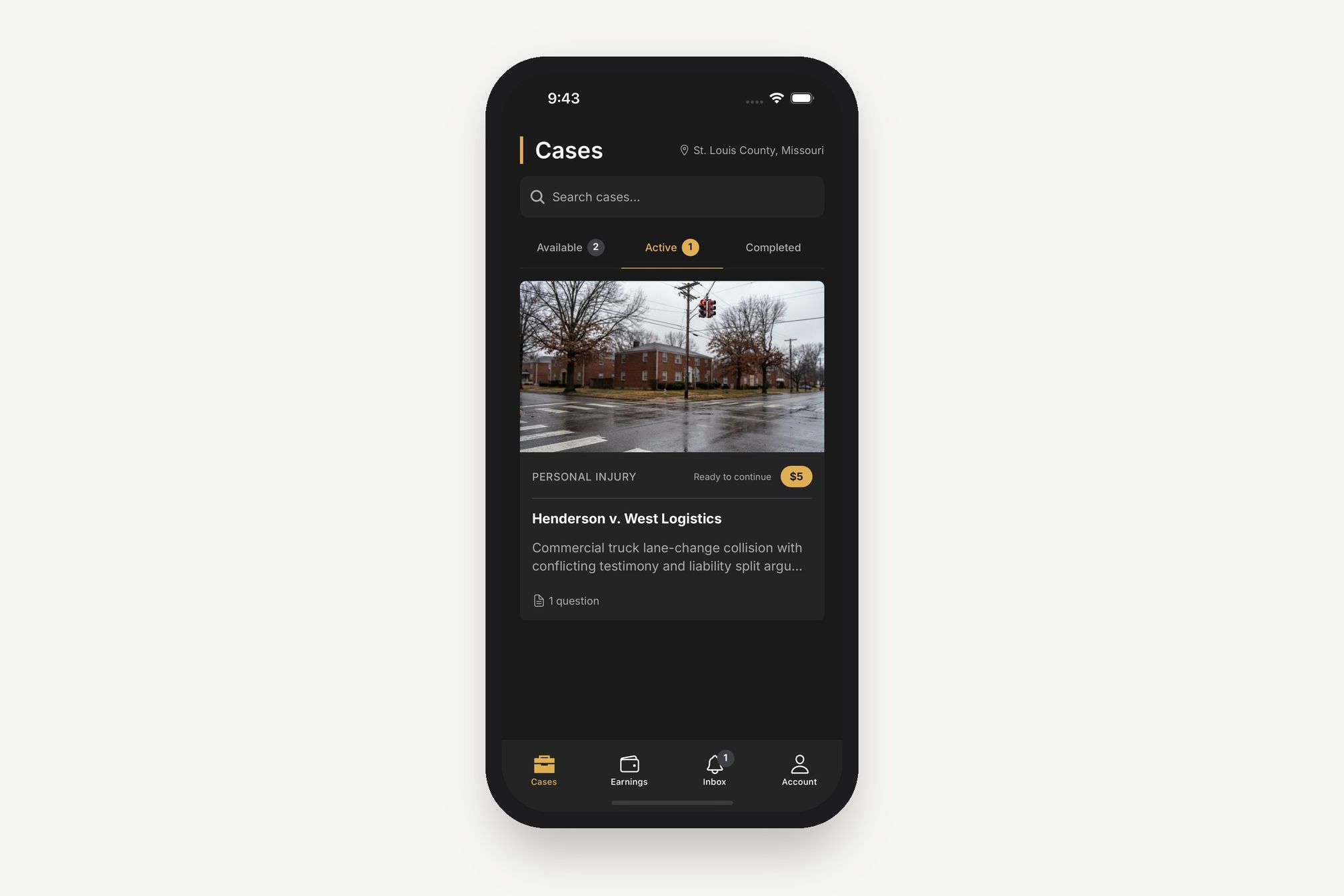
Open Cases. Available shows cases you can start, Active shows open cases you’ve started and Completed shows cases you’ve submitted. If Cases shows Add location, tap it, choose your state and county, then tap Save location.
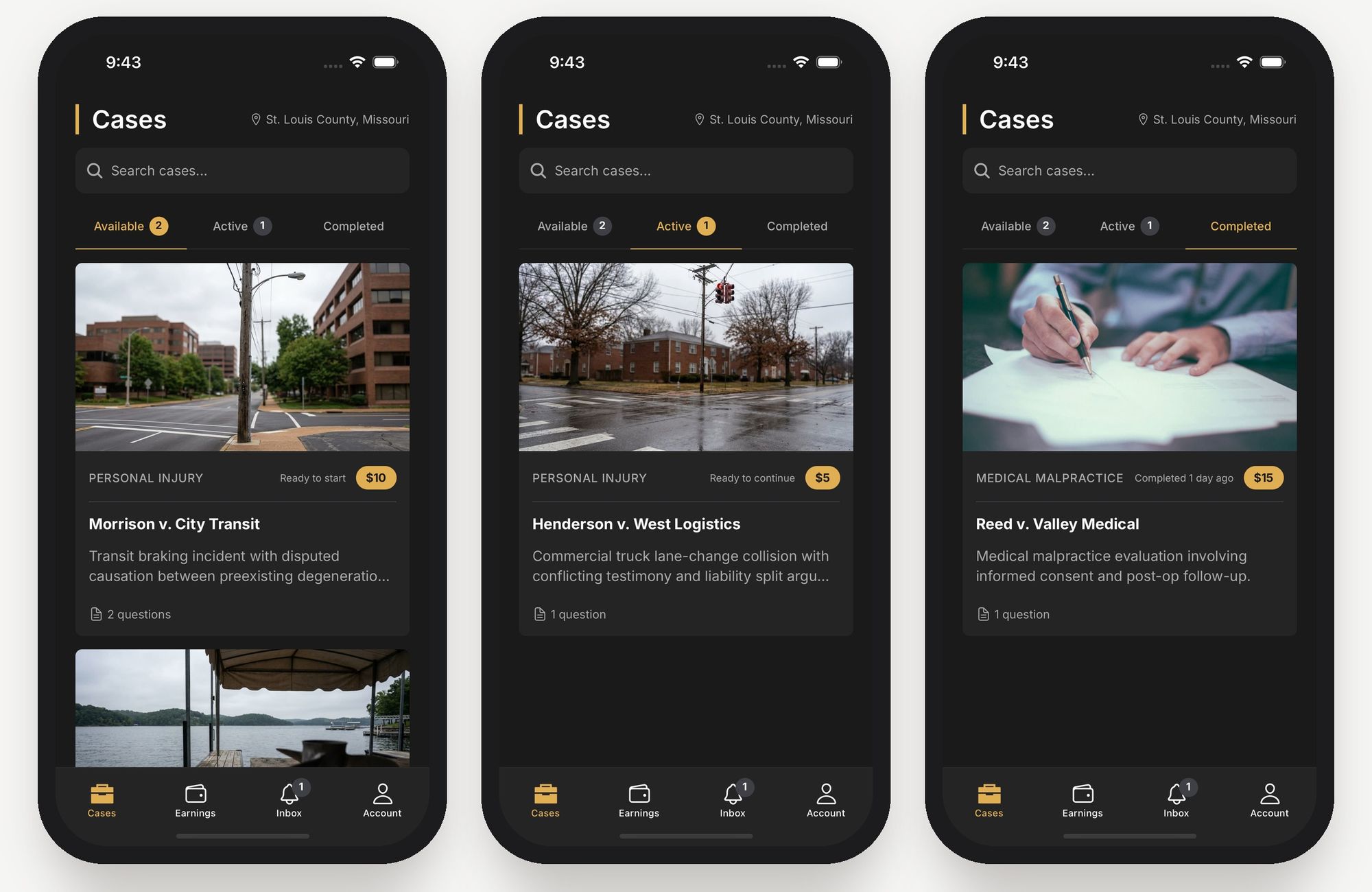
If Available is empty after your ID check and your county shows under Account, you haven’t missed a step. There’s no open case for you right now. Cases and evaluations explains when cases open and how to hear about a new one.
Cases and evaluations
When cases open
Focus is expanding to more counties, and how often cases open depends on where you live. Once your ID check is done, a case opens to you when a law firm or insurance company opens one to evaluators in your county. A firm can open its case to more than one county or to a whole state, so you may see a case from a nearby county.
Cases don’t open on a schedule. Each case needs a set number of evaluators and closes once enough have finished it, sometimes within a few hours, so notifications are the best way to hear about one in time.
Turn on new-case alerts
If Available is empty, tap Turn on notifications if it appears. If the button says Turn on notifications in Settings, use it to open your phone’s settings. Back in Focus, go to Account, then Notification settings. Status shows whether your phone allows alerts from Focus. Turn on Push notifications to see Notification types, and check that Case assignments is on. That’s the alert for new cases.
Focus also emails you when a case opens to you, even if phone alerts are off. Turning off Case assignments stops both. You may get a case email before you finish the ID check. Finish the check to open the case if it’s still available.
Reminders and messages
You may also get a reminder if a case still needs evaluators and you haven’t finished it. You can switch off Evaluation reminders if you don’t want reminders about pending evaluations or deadlines. Evaluation updates and Payment alerts cover the cases you’ve submitted and your pay.
To find a message again, open Inbox. You can search your messages and filter them by type, or by Unread or Archived. In a new-case message, tap View case details to go to the case if it’s still open.
If a case isn’t in the app
You might hear about a case and not find it under Available. Check these first:
- You started or finished it. Look under Active if you started it and Completed if you submitted it.
- The list needs refreshing. Clear anything typed in Search cases, then pull the list down to refresh it.
- It filled. Its paid places were taken before you opened the app.
- You already answered it. That includes answering it from an earlier account.
- It isn’t open to you. A case someone else can see may be open to a different county.
- Your app is out of date. Update it from the App Store or Google Play, then open Cases again.
- It was withdrawn. A firm can take a case down before it fills.
How paid places work
Paid places go to the first evaluators to submit. Each case pays a set number of evaluators, and starting a case doesn’t hold a place for you. If the case fills before you submit, you won’t be paid for that evaluation.
Careful answers are what a case needs, so start one when you have time to finish it. Read the case material and take the time your answers need.
Open a case
In Available, tap the case card. If it says Confidentiality agreement required, read the agreement, enter your Full name and tap I agree and sign. Focus keeps the name you sign with the agreement, and it doesn’t appear in the firm’s report. On the case details, check the fee and tap Open case. Read the Content warning and tap I understand to begin.
Cases can include injuries, medical information and graphic evidence. Everything in a case is confidential and only for your evaluation. The app doesn’t show how a case turns out after you answer.
Read the case and answer the questions
- Read Case facts, then tap Continue to questions.
- If a question has attachments, tap Review attachment or Review attachments. Tap Next attachment until you reach Answer question. To see the evidence again later, tap Review again.
- Answer each question. For a question about fault, tap a percentage to change it, and make sure the total comes to 100%. For a ranking, tap the items in the order you prefer.
- At the last question, tap Review answers.
If evidence doesn’t load, check your connection and tap Retry. If a question asks for a newer version of the app, update Focus from the App Store or Google Play.
Write your answers in your own words
Some questions ask you to write. Give thoughtful answers in your own words: say what you think and why. The firm sees your written answers as you wrote them, so leave out your name and other details that identify you.
The app checks your written answers when you submit. If you see Quality check failed, read the reason, review your written answers and tap Submit updated responses after editing.
Take a break
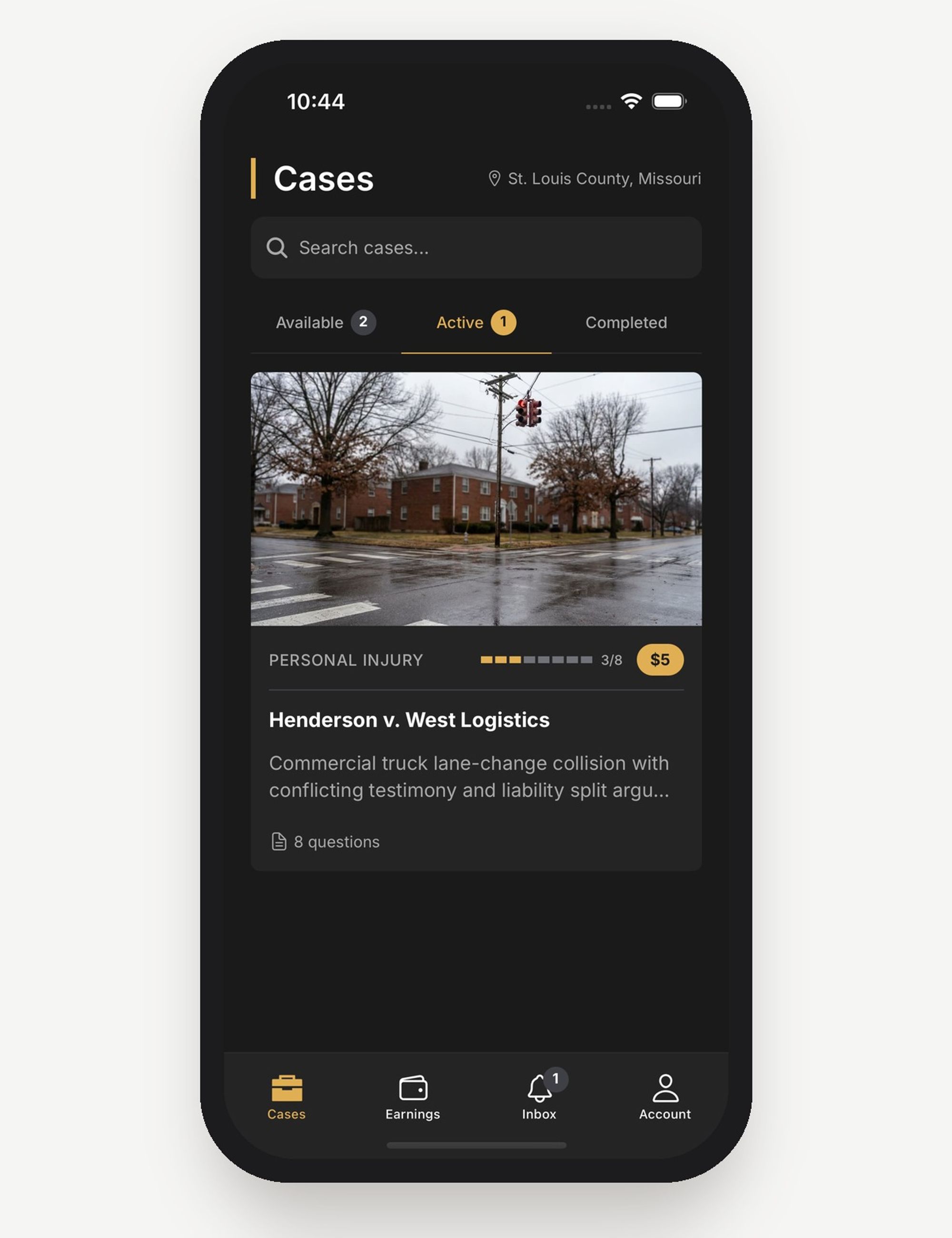
To pause while you’re answering, tap the back arrow until Need a break? appears, then tap Take a break. Your progress is saved. If you’re already on Review your answers, tap the X in the corner, then Exit.
While the case is open, it stays under Active: open it and tap Resume case. 3/8 means you’ve answered three of eight questions. Ready to submit means you’ve answered the last question and still have to send the evaluation.
A break doesn’t hold a paid place for you. A case that fills while you’re away leaves Active.
If a case fills while you’re answering
If Case filled appears while you answer, the paid places have been taken. You can stop there. If you choose to finish, the last button says Review answers (no payout), then Submit without payout: Focus records your answers and you won’t earn a fee for them. If you see Case no longer available, tap Return to cases.
Submit your answers
On Review your answers, tap an answer to edit it, then tap Save. When everything looks right, tap Submit evaluation. If you see Missing responses, look through the questions on the review screen. Tap any that shows No response, enter your answer and tap Save, then submit again. Once the app confirms your evaluation is complete, your answers are final.
If the app won’t let you go on partway through a case, update the app, then close it and open it again. If that doesn’t help, email support@joinfocus.com with the case’s title, the question you were on and the error message.
Take one more look
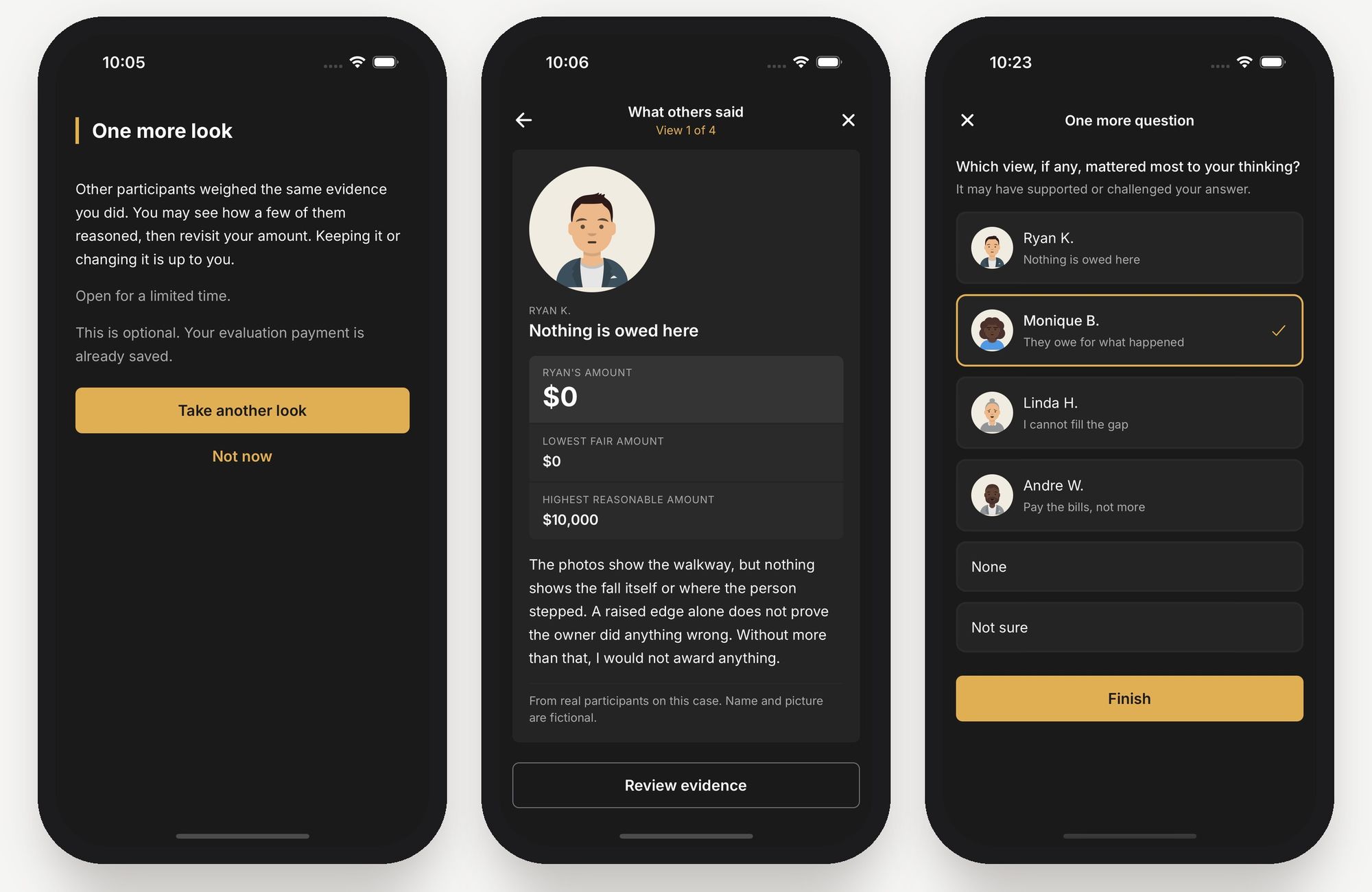
After you submit a paid evaluation, some cases invite you to take one more look. You may see how a few other evaluators read the same evidence. Then the app asks what you think now.
You might see a way of reading the evidence that you hadn’t thought of. Or you might find you still agree with your first answer. Either is fine.
This step is optional. It helps the law firm or insurance company behind the case understand how people respond when they see other points of view. There’s no right answer, and you don’t have to change your mind.
Your first answers stay as you gave them. Taking one more look doesn’t change the fee you earned for the case, and it doesn’t pay an extra fee.
Answer the follow-up questions
One more look appears after you submit, before the usual confirmation screen. You can skip it, keep your first answer or give a different answer. The app saves your follow-up separately.
- One more look: an invitation explains the step. Tap Take another look to start, or Not now to skip it. If you see Other views are on the way, tap Done and come back to the case later.
- What others said: on some cases, you see a few short views, one at a time. Each one summarizes a reason one or more evaluators gave in their written answers on this case. The name and picture are fictional. Review evidence lets you look at the case’s evidence again. Tap Next through the views, then Continue to your amount or Continue to your thinking.
- Revisit your answer. For an amount, choose Keep my answer or Change it. If your first answer didn’t include a range, the app asks for your Lowest fair amount and Highest reasonable amount, even if you keep the same number. If you change your amount, explain why. If you keep it, the explanation is optional. On the written version, answer What do you think now? Your first answers lets you look back at what you said. Tap Submit my answer when you’re ready.
- One more question: if you saw other views, the app asks which view, if any, mattered most to your thinking. Choose a view, None or Not sure, then tap Finish, and Done on Answer saved.
Take one more look later
If you tapped Not now, open Cases, then Completed, and choose the case. While the invitation is open, tap Take another look. If you started and took a break, tap Resume. The card shows Open until with a closing time, or Open for a limited time.
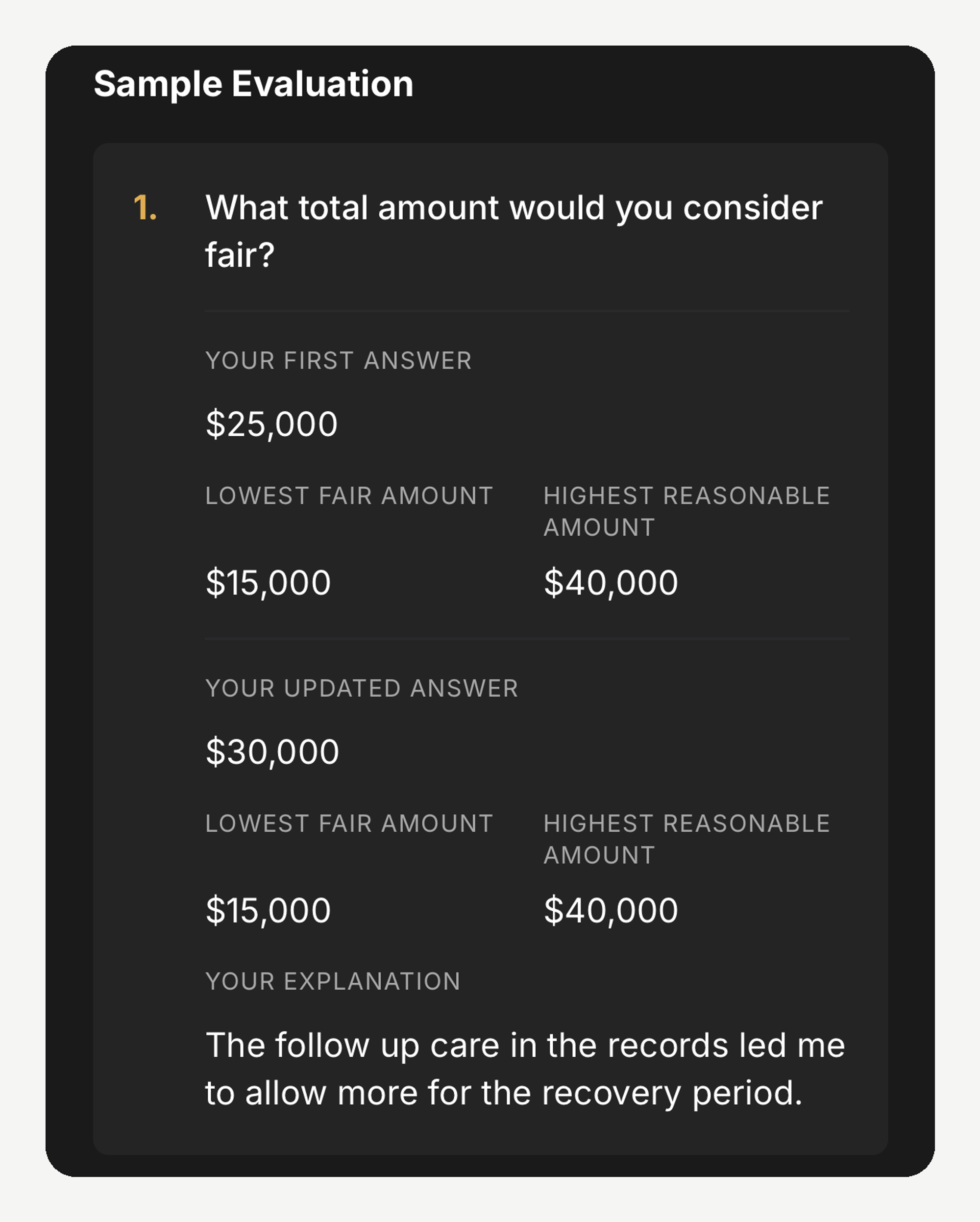
You can also open the completed case to see what you submitted. If you submitted an amount when you took one more look, the completed case shows Your first answer and Your updated answer together. If you skipped it, your original amount appears under Your response. An explanation for an amount appears under Your explanation, and a written follow-up under Your thinking.
Payments and earnings
Find a missing payment
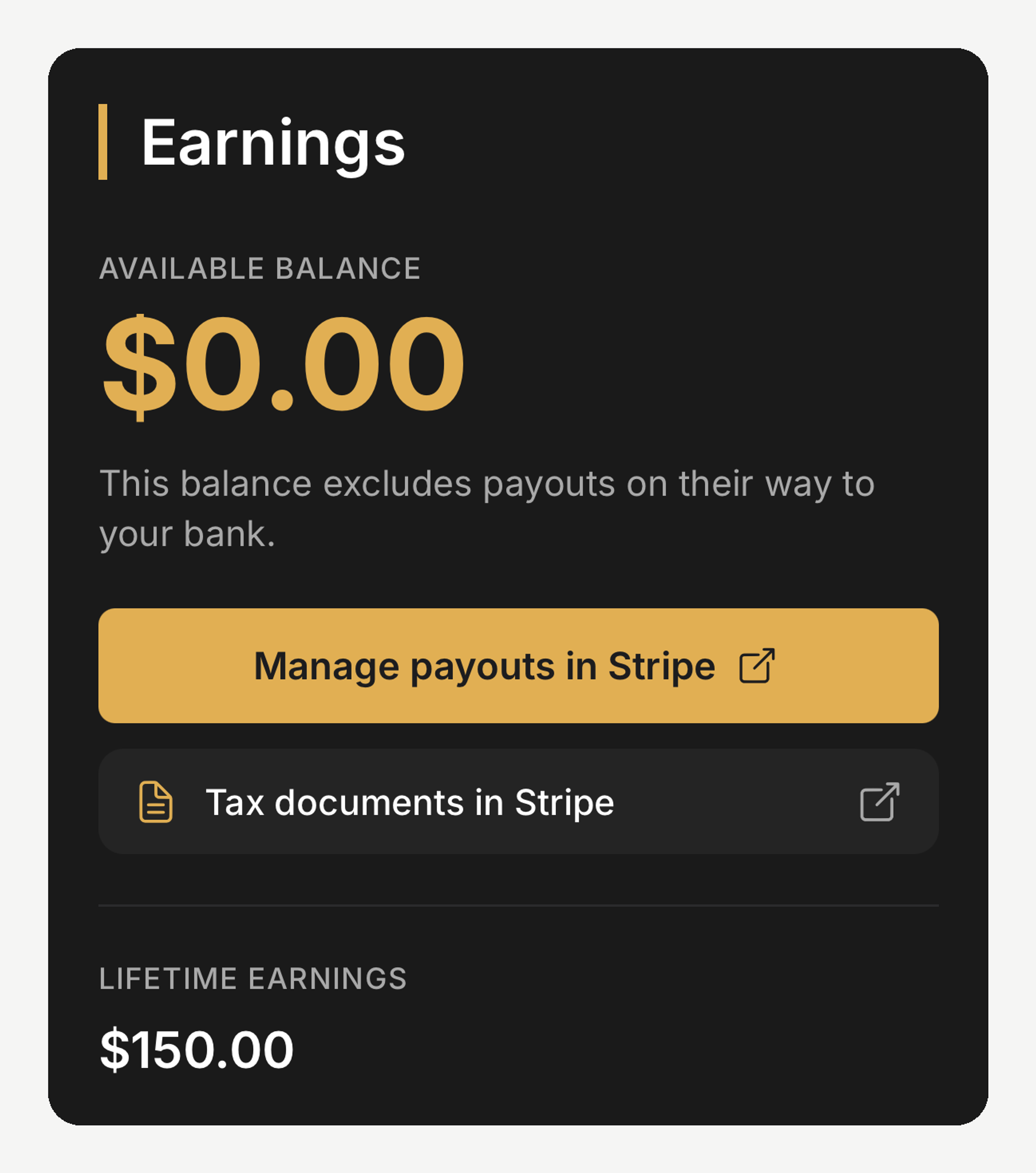
Open Earnings and follow the fee:
- Find the fee under Recent earnings. Show more loads older earnings.
- If it says Pending, Focus hasn’t sent it to Stripe yet. That almost always means payout setup isn’t finished. If Earnings shows Setup required, finish the setup and Focus sends the fee.
- If it says Paid, Focus has sent the fee to your Stripe account. Tap Manage payouts in Stripe. Stripe shows each payout, its arrival date and the bank account or card it went to.
- If the payout has arrived, check that account. It may not be the one you looked at first, such as a savings account rather than checking. If Stripe says the payout didn’t go through, or you can’t find a payout, email support@joinfocus.com with the case’s title.
Available balance can show $0.00 even after you’ve earned money, because it leaves out payouts already sent or on their way to your bank.
If you see We couldn’t load your earnings, tap Try again. If the list loads and the evaluation isn’t on it, it may not have earned a fee: a case that fills before you submit doesn’t pay. If you still can’t find a payment, email support@joinfocus.com from the email address on your account with the case’s title.
How a fee reaches your bank
A case fee moves through these steps. Step 2 applies only if you haven’t set up payouts yet.
- Pending review. The app checks your written answers when you submit. If the evaluation earned a fee, the confirmation screen shows Pending earnings with the amount, or the word Earned, marked Pending review.
- Setup required. If you haven’t finished setting up payouts, Earnings shows Setup required, and the fee waits as Pending under Recent earnings until you finish.
- Paid. Focus has sent the fee to your Stripe account. Once your payouts are set up, this usually happens within a day of submitting.
- Stripe sends the money to your bank account or debit card with its next payout, usually within a few days.
What the amounts on Earnings mean
The amounts on Earnings measure different things. Lifetime earnings adds up the fees and bonuses Focus has sent to your Stripe account. Available balance is what’s still in Stripe, after payouts already sent or on their way to your bank.
How much cases pay
Focus evaluator pay depends on the case. The standard fees are $5, $10 and $15, and some cases have their own fee. Check the fee on the case details before you start. If the amount you’re paid differs from the fee you saw, email support@joinfocus.com with the case’s title and both amounts.
Set up payouts
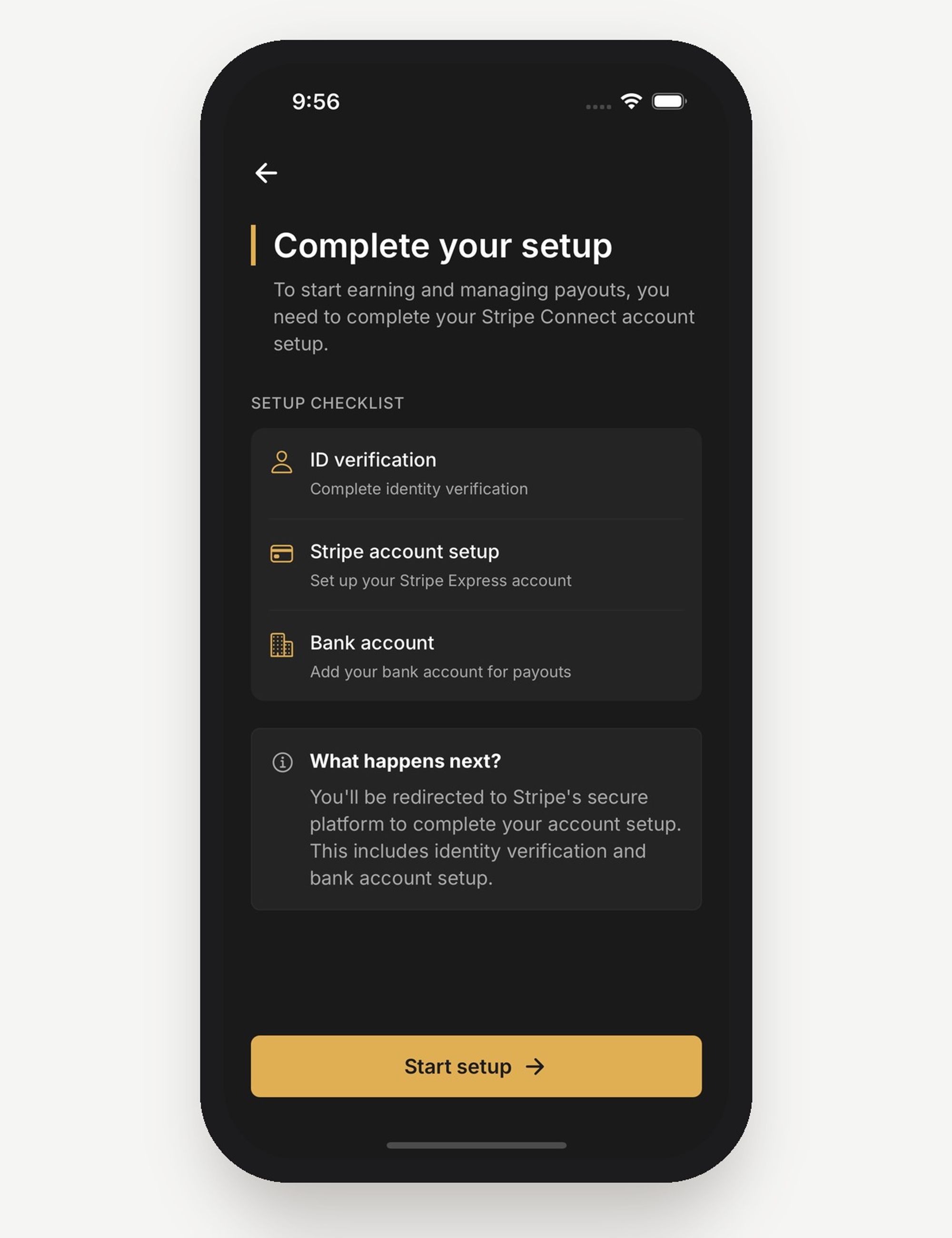
Focus pays you through Stripe, to a US bank account or debit card that you add in Stripe. Open Earnings. Under Setup required, tap Complete setup, then Start setup. Stripe asks for your details and your bank account or card. If you’ve finished in Stripe and still see Setup required when you return, tap Refresh status. If Stripe keeps asking you to verify the same details, email support@joinfocus.com with the wording on screen.
Fees wait as Pending until your setup is done, so set it up as soon as you can. Stripe asks for your bank details only so it can pay you. Payouts go only through Stripe, so Focus can’t pay you through PayPal, Venmo or Cash App. Support can’t enter bank details for you, so never email bank details or verification codes to Focus.
Change your bank account or card
Tap Manage payouts in Stripe. In Stripe, open Settings, then find Payout details on the Business details tab. If you’ve already had a payout, Stripe asks for your previous bank details and a 6-digit code it sends by text before it saves the change. Make the change before your next payout: once Stripe sends a payout, it can’t cancel or redirect it.1
Find your tax documents
Stripe handles your tax forms as well as your payouts. On Earnings, tap Tax documents in Stripe. It opens your Stripe account, where you’ll find a tax form if Stripe has issued you one. If Focus shows Setup required, finish setting up payouts first.
Identity and location
If the ID check doesn’t finish
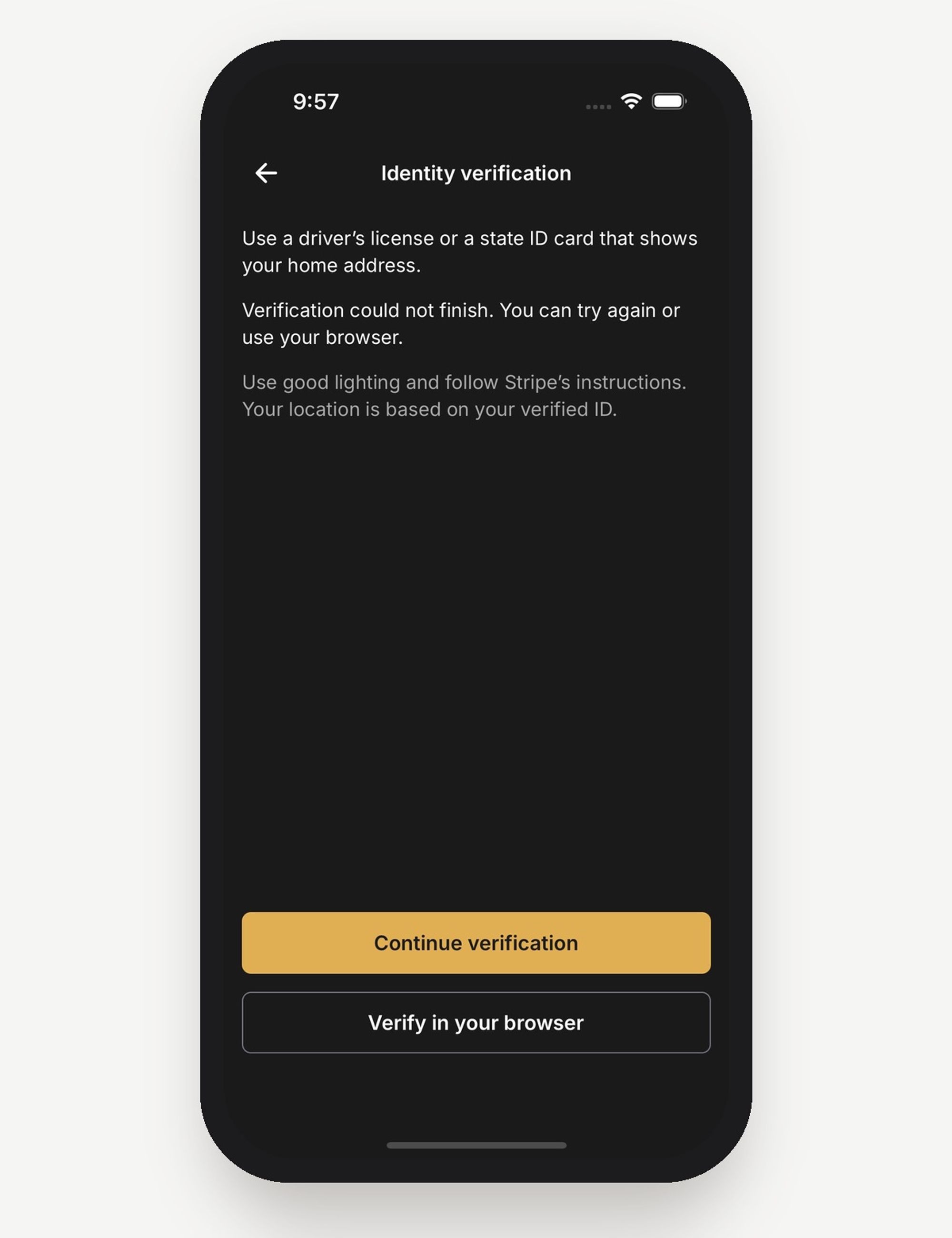
A check can fail when the photo of your ID is blurry or has glare, or when your selfie doesn’t match the photo on the ID. Find what the app shows in the table below.
You can submit your ID up to three times. Closing the check before you submit your ID doesn’t use an attempt.
On some phones and tablets, the main button says Verify in your browser. Tap that wherever the table says Continue verification.
If Stripe won’t accept your ID, email support@joinfocus.com with the message you see, and leave the photo of your ID out of the email.
| What the app shows | What to do |
|---|---|
| Verification submitted or Verification in progress | Stripe has your ID and selfie, so don’t send them again. Tap Check status for an update, or leave and come back. The app notifies you when the check is complete. |
| “This is taking longer than usual.” | Your submission stays in place. Tap Check status, or come back later. |
| “Stripe needs more information to finish verification. Continue to see the next step.” | Tap Continue verification and follow Stripe’s prompts. Find good light, lay your ID flat and hold your phone still. |
| “Verification was closed before it finished.” | You closed the check early. Tap Continue verification, or Verify in your browser if something wasn’t working. |
| “Verification could not finish. You can try again or use your browser.” | Tap Continue verification to try again, or Verify in your browser. |
| Camera not working? Verify in your browser, or just Verify in your browser | Tap it if the app can’t open your camera for the selfie, or a Stripe screen won’t let you continue. Your browser runs the same Stripe check. |
| “Finish verification in your browser, then return here.” | Finish the check in your browser, then come back to Focus. To open the browser again, tap Continue in browser. |
| Your ID needs a home address | If you see Verify again, tap it and use a driver’s license or state ID card that shows your home address. If the button isn’t there, tap Contact support. |
| Please try again later | Wait a day and start again. |
| Verification limit reached | Tap Contact support, or email support@joinfocus.com with the message you see. |
How Focus sets your county
Focus uses the home address on your verified ID to set your county. When you join, you choose your state and county. The ID check then reads the ZIP code in the home address printed on your ID. If the county you chose includes that ZIP code, you keep it. If not, Focus changes your county to the one that holds most of the homes in that ZIP code, and sends you an email and an app notification saying so.
Focus uses your county to match you with cases. To see it, open Account: it’s under your email.
Fix a wrong county
If the county in the app doesn’t match the address printed on your ID, reply to the email Focus sent when it changed your county. If you can’t find that email, write to support@joinfocus.com from the email address on your account. Say which county the app shows and which county your ID’s address is in. Leave the photo of your ID out of the email.
Change your county after you move
After a move, your county can change once your new address is printed on your ID. Here’s how to update it:
- Update your address with your state’s driver’s license office, and get a driver’s license or state ID card with your new address printed on it.
- Email support@joinfocus.com from the email address on your account and ask to verify again with your updated ID.
- When the app asks you to verify your identity again, use the new ID. Afterward, open Account to check your county. If it isn’t right, reply to support.
Until your ID shows your new address, Focus can’t change your county. A change-of-address sticker or card doesn’t change it, because the check reads the address printed on the ID. A utility bill, lease, voter registration or mail doesn’t change it either.
One county at a time
Your account has one county. It stays the same when you travel or stay somewhere else for a while, and you can’t add a second one, such as the county where you work.
Account and privacy
Sign in
If you already have an account, tap Sign in on the welcome screen. You can use your email and password, or a text message instead of a password. A text message also gets you in if you’ve forgotten your password, without resetting it.
- On Sign in, tap Sign in with a text message, just under the Sign in button.
- Enter the phone number on your Focus account and tap Send code. It needs to be a US number.
- Type the 6-digit code from the text message. The app checks the code as soon as you enter the sixth digit.
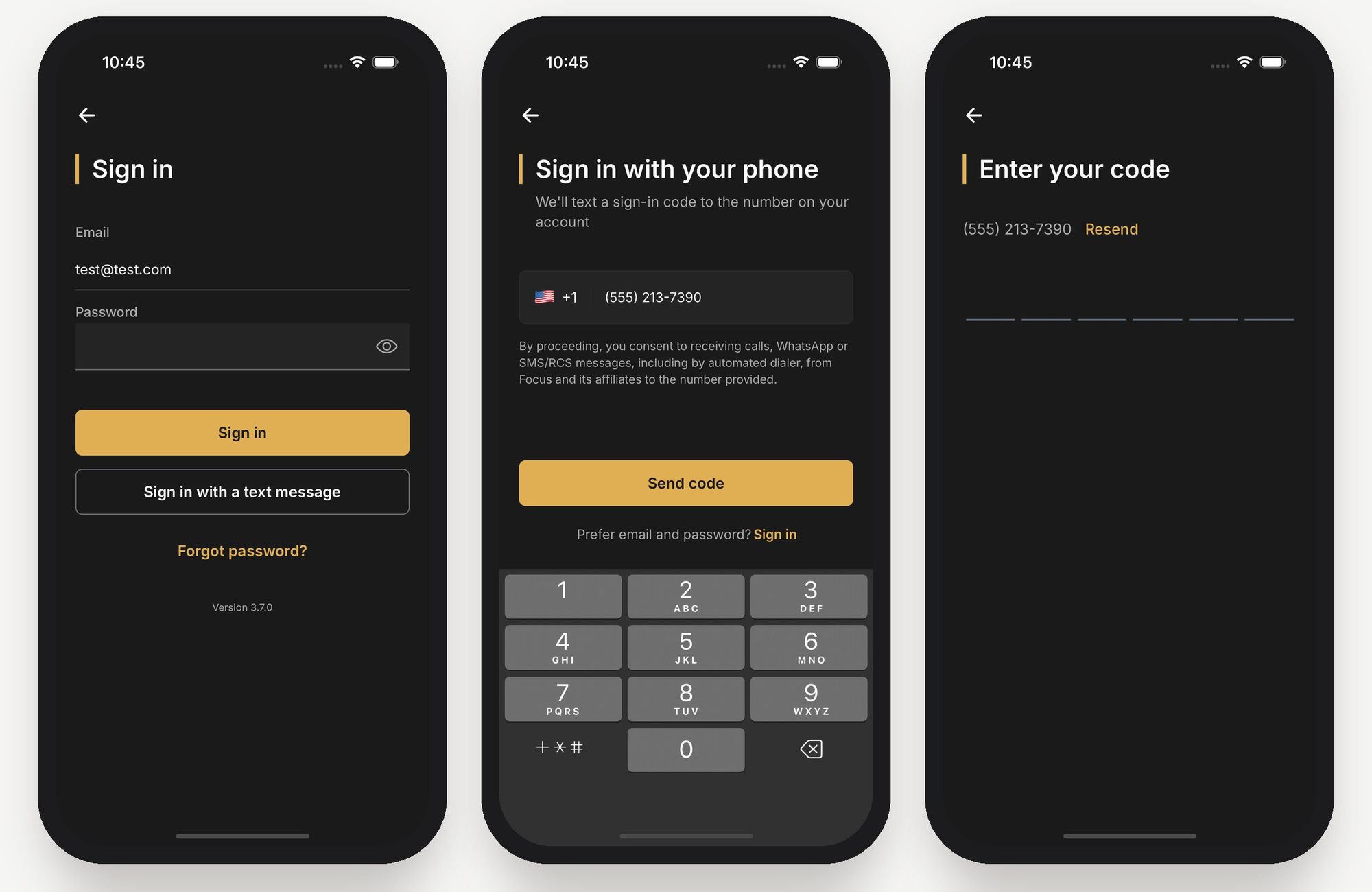
You can also choose Sign in with a text message on the Forgot password? screen. If you signed up by phone and still need to confirm your email, the code brings you back to Check your email. Open the verification link to finish that step.
To switch back to email and password, tap Sign in beside Prefer email and password?
Sign-in problems
- The code doesn’t arrive. On Enter your code, check the phone number above the six boxes. If it’s wrong, go back and enter the number on your account. If it’s right, tap Resend and use the newest code.
- “We couldn’t find an account with this phone number.” Check it against the number you used to sign up. If you don’t have an account yet, tap Join Focus.
- Your phone number has changed. If you’ve confirmed your email and set a password, use them to sign in. If you can’t get into your account, email support@joinfocus.com for help.
- Connection timeout. Check your internet connection and tap Try again.
New phone, updates and text size
If you get a new phone, install the app again and sign in with the same email or phone number. Your account, completed cases and earnings stay with your account.
Keep the app up to date. An old version may not be able to show every kind of question in a newer case. If the app shows A new version is ready, tap Update, and check the App Store or Google Play from time to time. To make text in the app larger, make text larger in your phone’s settings.
Your account screen
After your ID check, the tabs at the bottom of the app are Cases, Earnings, Inbox and Account. Account shows your name, email and county, and Notification settings controls your alerts. Request my data and Delete my account are under Privacy.
Get a copy of your data
Request my data opens an email to support asking for a copy of the personal data on your account. If your email app doesn’t open, email support@joinfocus.com with the subject “Data access request (Focus)”.
Delete your account
Delete my account closes your account for good. To confirm, tap Delete my account again, or Close to go back.
When you delete your account, Focus deletes or de-identifies your personal information. Answers you gave to completed cases stay in those cases’ results under an evaluator number, without your account name or contact details. They stay as you wrote them, including anything personal you typed into an answer. Focus may keep limited information longer where it’s needed to comply with the law, prevent fraud, resolve disputes or enforce agreements, such as payment records. Deleted information can also stay in backups for a limited time. The privacy policy explains what Focus keeps and why.
If you want to delete your account before you’ve finished the ID check, email support@joinfocus.com from the email address on the account.
Contact support
Email support@joinfocus.com from the email address on your account. For a problem with a case, include the case’s title and the question you were on. If you send a screenshot, crop it to the error and leave out case evidence and personal details. Never send photos of your ID, your Social Security number or bank details by email. For more about being an evaluator, read questions about being an evaluator.
Referral program
In some counties, Focus pays a bonus for inviting people you know. Where it’s on, Cases shows Invite friends under Available. If you don’t see it, clear anything typed in Search cases. If it still isn’t there, referral bonuses aren’t running in your area. You may see Tell friends and family instead, which shares a link to the app without a bonus.
Invite a friend
- Tap Invite friends. The first time, read Program rules and tap Got it. The invite screen names the area where your friend needs to live.
- Choose Phone or Email, enter the phone number or email your friend will use to join, and tap Create invite and share. Send the message yourself. Focus never contacts the people you invite.
- Your friend joins Focus after your invite and completes the ID check with an address in that area.
- You earn $5. It appears in Earnings and pays out like any other fee.
Referral rules
Your friend can’t already be on Focus. If two people invite the same person, the earliest invite gets the bonus. You can have up to 25 invites. Self-referrals and fake accounts don’t pay.
Track your invites
My invites shows where each invite stands. Invited means your friend hasn’t joined with those details yet. Joined means they have. Verified means they passed the ID check and the bonus qualified. Paid means the bonus has gone to your Stripe account. Not selected means someone else’s invite came first, and Ineligible means the invite didn’t qualify. To free up one of your 25 places, cancel an invite while it still says Invited.