
Last updated November 23, 2026
How to Run an Online Focus Group for a Legal Case


In this post
Before you name a number in a demand or answer an offer, you want to know how people in the venue will see the case: whom they blame, what they would award and which facts move them. An online focus group puts those questions to people from the venue and reports what they said. In Focus, you upload your case files and Focus proposes a strategy: what the panel should test. When you approve it, Focus drafts the case and its questions. You check the draft, publish it to evaluators in the counties you choose and read the report when the panel finishes.
Running a case takes five steps:
- Build the case from your files: start a case and upload what you have.
- Review and approve the strategy Focus proposes. You can export it as a report before any evaluator answers.
- Check the case, redact the attachments that need it, then preview and publish.
- Read the report when the panel finishes. On Gold, Platinum and Elite cases built with Focus Intelligence, Trial Analysis follows, and Focus sends an email when it’s ready.
- Choose who the report is for and share it from Focus.
Every screen below comes from a sample case, not a real one.
Start a case
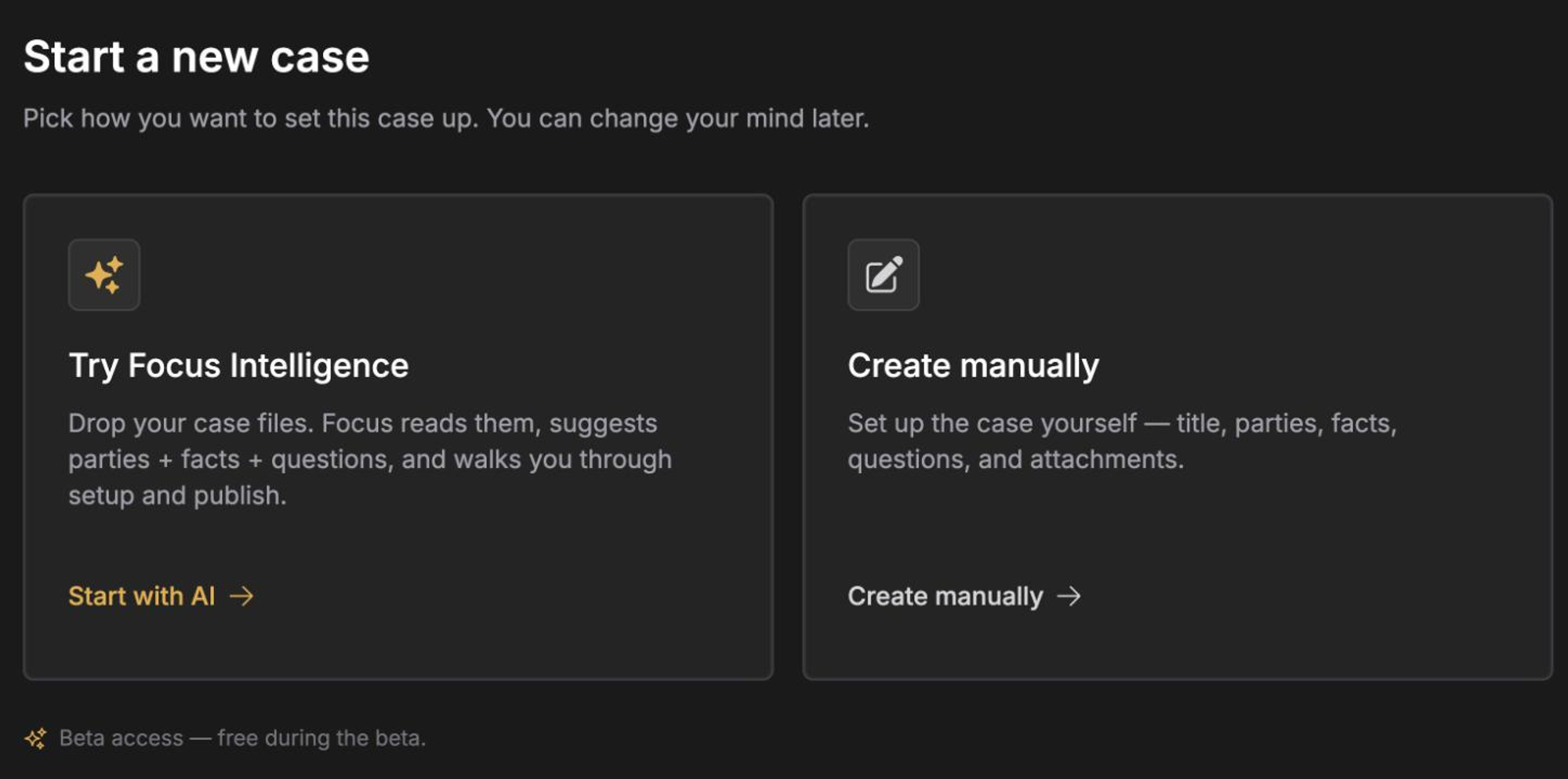
Click Create Case, then Start with AI under Try Focus Intelligence. Select Silver, Gold or Platinum and click Create Case, and Focus opens the Upload step. The tier sets how many evaluators answer: 20 on Silver, 50 on Gold and 75 on Platinum. An Elite case starts from one of your firm’s Elite case credits, and the credit sets its panel size. The app marks Focus Intelligence as free during the beta. To set a case up by hand instead, choose Create manually.
Upload your case files
Upload the files you have: demand letters, depositions, police reports, medical records, photos, video and audio. Focus accepts PDFs, images, video and audio, so upload documents as PDFs. Each file can be up to 250 MB, and video up to 500 MB. Focus analyzes PDFs and PNG, JPEG, WebP and GIF images up to 16 MB, and converts iPhone photos (HEIC) to JPEG so it can read them. If Focus can’t analyze a file, the upload screen says so, and you can still share it as an attachment. Video and audio can go to evaluators as attachments, but Focus doesn’t analyze them yet.
You decide which files evaluators see. Focus analyzes what it can read, but evaluators see only the files you add to the case later, in Set Up. Each uploaded file has an Allow as case attachment switch. Turn it off for any file that should never go to evaluators, and Focus won’t suggest it.
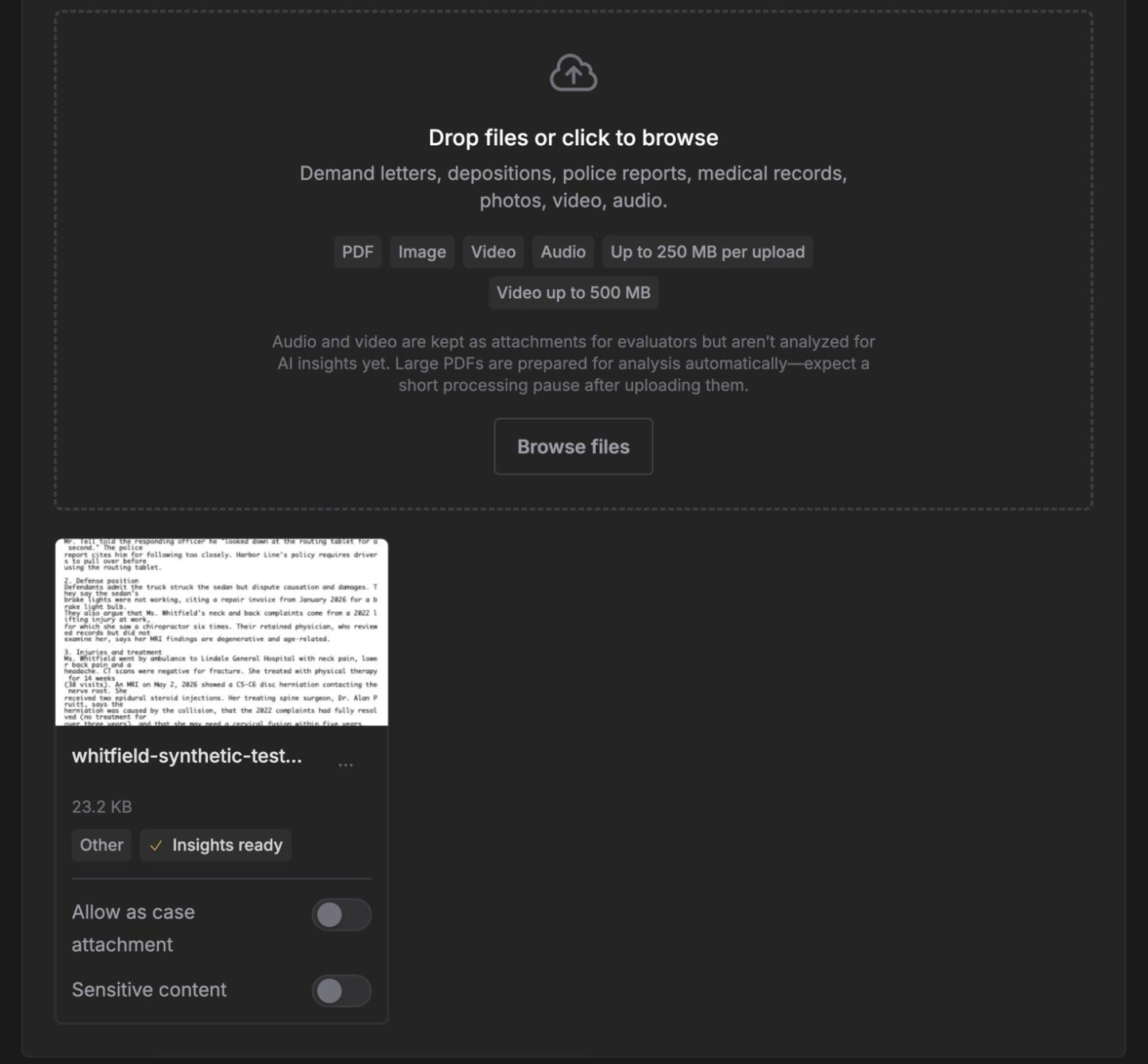
When you’ve added everything, click Continue to Analyze.
Review the strategy
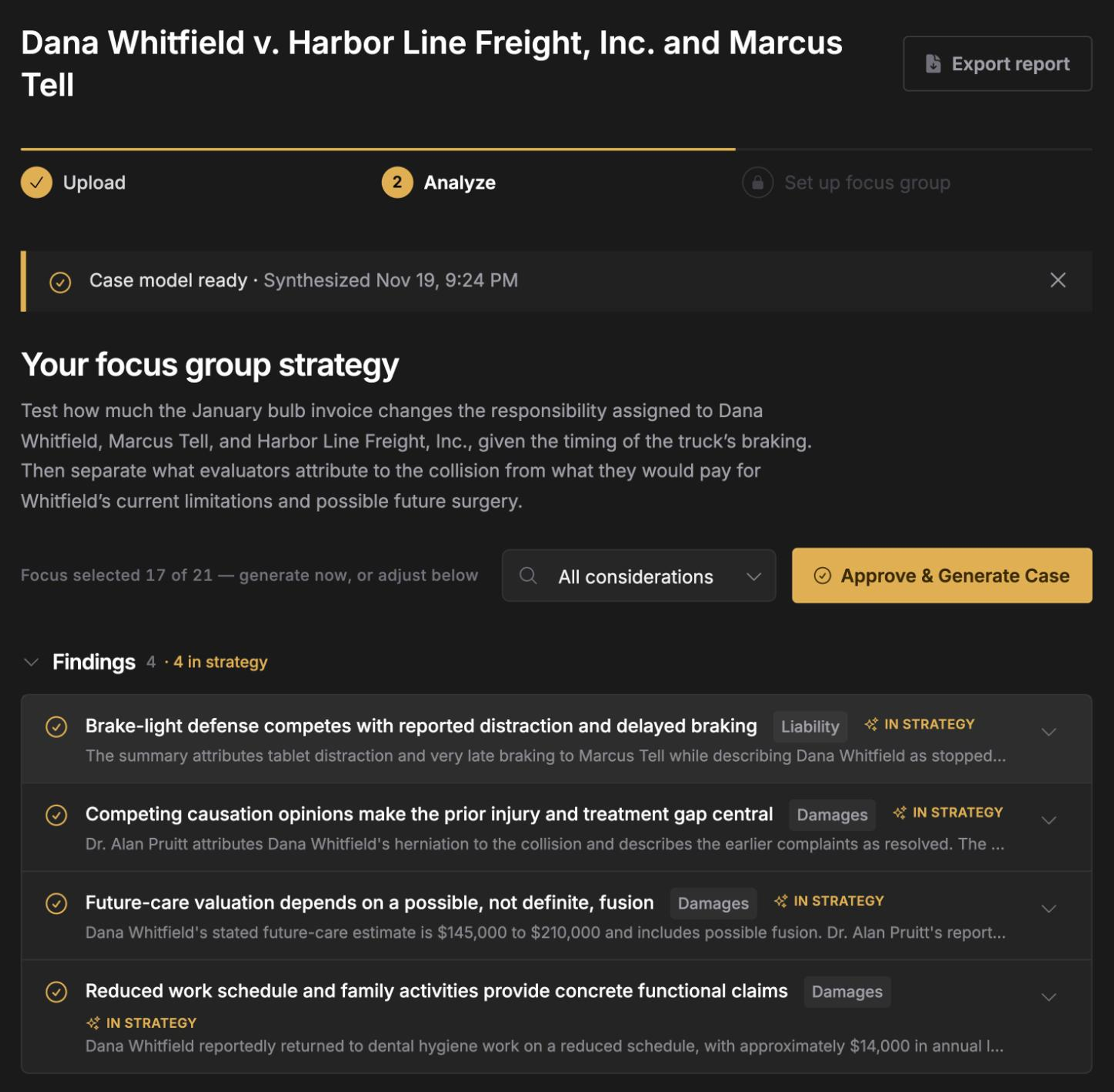
When Focus has read your files, it proposes a strategy: the findings, possible reactions and strengths or weaknesses it thinks the panel should test. This is where you decide what the panel tests, because everything Focus drafts next follows from it. In strategy marks the issues you want tested. Focus uses those to draft the questions, the Case Facts evaluators will read and the attachment suggestions. Context only keeps an item as background.
What’s on the Analyze step
At the top, under Your focus group strategy, a short paragraph says what the panel should test and why. Below it are four lists:
- Findings: points Focus identified in your files, grouped under categories such as Liability or Damages.
- Reaction themes: possible responses Focus suggests testing. High, Medium and Low are Focus’s estimate, made before anyone answers, of how divided evaluators will be.
- Plaintiff / State Strengths & Weaknesses: the points Focus identified for that side.
- Defense Strengths & Weaknesses.
Every item is marked In strategy or Context only. A line above the lists says how many items Focus selected, and the count next to Findings says how many findings are in the strategy.
How to review it
- Read the strategy paragraph. Compare the proposed strategy with the decision you need to make.
- Check the source. Open a finding and compare its quoted passage with the original file at the location shown. For a theme, strength or weakness, open a linked finding to see its supporting evidence.
- Look through the Context only items. Use the filter at the top of the list to show All considerations, In strategy or Context only.
- Change what you disagree with. Click Include or Context only on any item. From the keyboard, K includes, D sets context only, and the arrow keys move between items.
- Click Approve & Generate Case. Focus drafts the case from the strategy. When it finishes, you land in Set Up with the questions, the Case Facts and attachment suggestions ready to review.
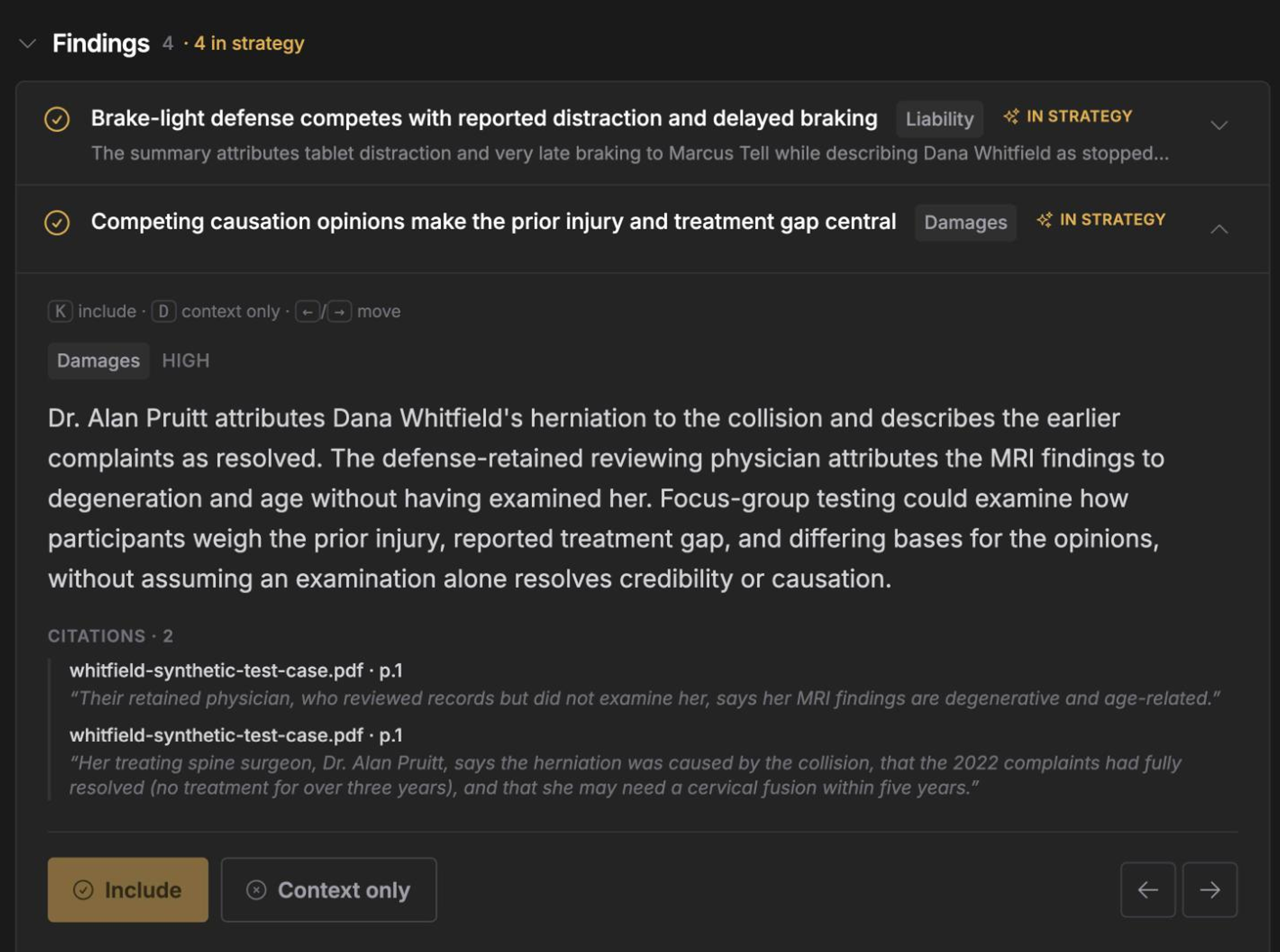
Approving locks the strategy. Analyze then shows Strategy approved, and the Include and Context only buttons are turned off, so make every change before you approve. After that, you edit the case itself in Set Up.
When to move an item
If something you care about is Context only, move it in. If the strategy tries to test too much for the questions your plan allows, move the weaker items out.
- Move a finding in when it’s the point the other side keeps raising, or when it matters to the negotiation. If the other side keeps raising a gap in treatment, ask: “What effect, if any, did the gap have on your view of the injury?”
- Keep a finding as context when the panel needs it as background but you don’t need their reaction to it, such as an undisputed date or a party’s job.
- Check the reaction themes. Open each theme, read any suggested question and decide whether a split on that issue would change your mediation plan. A High rating is Focus’s estimate, made before anyone answers. You learn how divided this panel actually is only from its answers.
Export the strategy report
Once Focus has proposed a strategy, you can turn the analysis into a report for a case review meeting or a client update. Click Export report on the Analyze step. The report is ready before any evaluator has answered.
What’s in it
- Case Overview: the strategy and why, the venue, and the parties.
- Strengths & Weaknesses: each side’s strengths and exposures, drawn from your files.
- Possible reactions: Focus’s estimate of how much each issue might divide evaluators, as High, Medium or Low, and a suggested question when Focus has one.
- Key Findings: findings from your files. Where a finding has a citation, you’ll see the quoted passage, the file and its location.
The first page shows the date it was generated, the case type and venue when known, and counts for the sections you include.
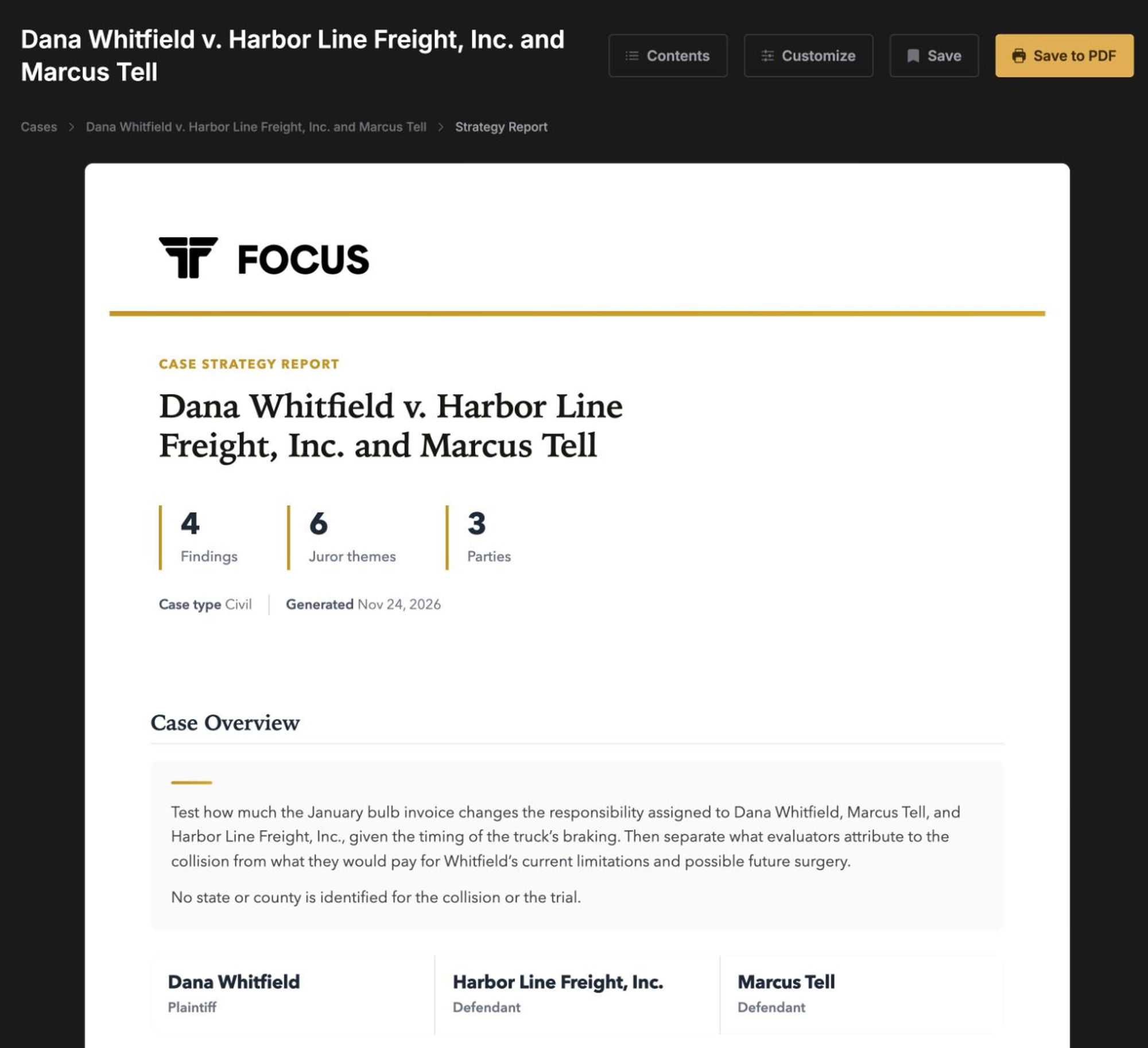
How to export it
- Click Customize to choose what goes in. Under Scope, Limit to the focus-group strategy hides findings, themes and strengths or weaknesses the strategy isn’t built on. Under Sections, switch off any you don’t need.
- Use Contents to jump around the report as you check it.
- Save it. Click Save, confirm the report title and save the copy in Reports. For a PDF, click Save to PDF, then choose the PDF destination in your browser’s print dialog.
A saved strategy report is a copy of the analysis as it stood when you saved it. If you change your selections before approval, export again to save the revised version. Save the full report for your own team, so everyone sees what the strategy leaves out as well as what it tests. For a client update, turn on Limit to the focus-group strategy and keep Case Overview on, so the client can see why you chose those issues. You share a saved strategy report the same way as a focus group report: see Save and share a report.
Edit the case
When Focus has drafted the case, you land in Set up focus group with a draft of each part:
- Case Overview: the case type and the venue county on a map. Click the map to add counties, or use Expand to similar counties or Expand to entire state. The highlighted counties are where your evaluators will come from.
- Case Parties: the plaintiffs and defendants. Each party has an internal name and a separate Evaluators see label. Check the labels in the preview, for example in a fault question, so they identify the right people without naming them.
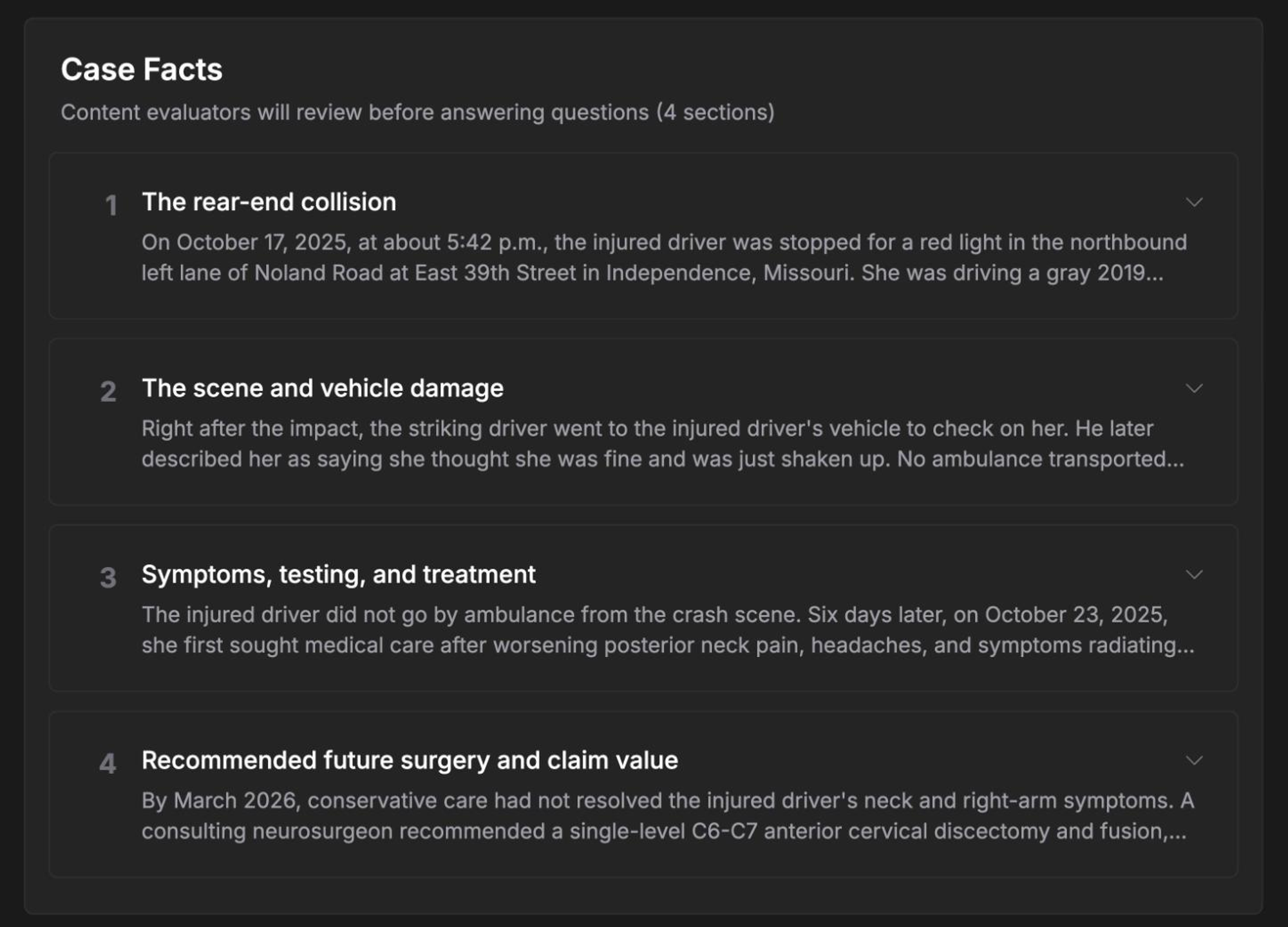
- Case Facts: what evaluators read before they answer, in sections.
- Evaluation Flow: the questions Focus drafted, each with its type. Choosing a question type explains what each type adds to the report.
- Attachments: the files Focus suggests sharing with evaluators. For each PDF, JPEG, PNG or WebP you want, turn on Redact PII if it shows personal information, then click Accept. The next section covers redaction.
Everything here is yours to edit. Read the Case Facts as an evaluator would. They should tell both sides of the story in plain words. Attorney Sharon Vinick, writing about focus groups on a small budget, notes that they work best when the attorneys are neutral in their presentation and ask open-ended questions.1
Redact case attachments
Focus can redact personal information (PII) from the PDFs and images evaluators see, so you don’t have to black it out by hand. Redaction is opt-in: turn on Redact PII for a file, and Focus redacts it automatically. Files you don’t turn it on for are shared as they are. Focus can redact PDFs and JPEG, PNG and WebP images. A case can’t be published while a file flagged for redaction is still waiting to be redacted. Video and audio aren’t redacted.
On a case built with Focus Intelligence
- Turn on Redact PII, then click Accept. Each PDF, JPEG, PNG or WebP that Focus suggests in Set Up has a Redact PII switch, and it starts off. Turn it on for any file that shows names, addresses, phone numbers, account numbers or anything else evaluators shouldn’t see, then click Accept. Focus redacts the file and adds the redacted copy to the case’s attachments. If you click Accept with the switch off, the original file is added.
- Check each attachment. Open each redacted file and read it. If a redaction fails, the suggestion shows Redaction failed and its Accept button becomes Retry.
On a case you set up by hand
- Turn on Redact PII. In the case’s attachments, each PDF and supported image has a Redact PII switch. Turn it on for every file that needs it.
- Check the status. Each flagged file shows Redaction pending, then Redacting…, then Redacted. Open the redacted file and review it. If a file shows Needs review, click Retry.
- Publish. Focus won’t publish the case until every flagged file shows Redacted. Once a file is being redacted or is redacted, its switch can’t be turned off.
Add specific terms
Automatic redaction can miss things a person would catch, such as a nickname, a street or a business that identifies someone. On a redacted attachment, click Add terms. If the case lists its parties, their names are already filled in. Add the names, IDs or phrases you want removed, separated by commas, and click Run additional redaction. Focus runs a second pass on top of the redacted file. Review the updated file when it finishes.
What redaction doesn’t cover
- Video, audio and other file types. Focus doesn’t redact them. Trim, edit or redact them before you upload them.
- Your Case Facts and questions. Redaction works on attachments. What you write into the case is shown as you wrote it, so leave out what evaluators shouldn’t see.
Whatever tool you use, read the finished file before anyone else does. Attorney Kevin F. Brady describes court filings where text that looked blacked out could still be recovered, and recommends testing a redacted file before it goes out.2
Preview and publish
Under Preview the evaluator experience, click Open preview to step through the case the way an evaluator will see it: the case listing, your sections of facts, every question and the final submission, in order. Any answers shown in the preview are labeled as samples.
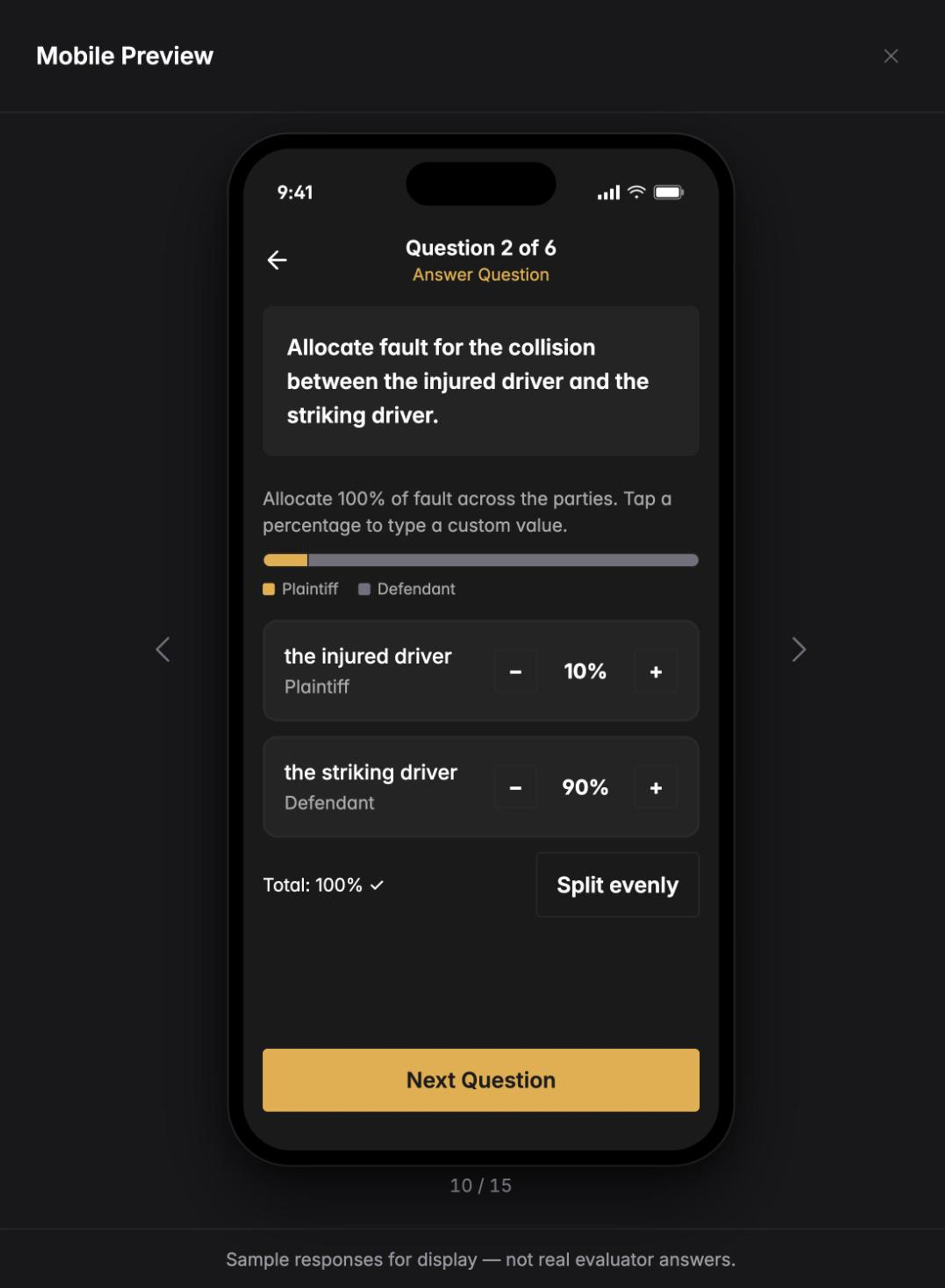
When the case is ready, click Publish. In Ready to publish?, review the cost and choose how to pay for the case, by direct payment or with credits. If the case has more than one Amount question, confirm which is the headline award. Then click Publish Case. Once published, a case can’t be edited, so finish the preview first. If you can’t publish, check for missing details and for attachments still waiting to be redacted.
What happens after you publish
Publishing opens the case to evaluators in the counties you chose. They see it in the Focus app. Your firm gets an email when the panel is a quarter, half and three-quarters full, and again when it’s complete.
Evaluators must be at least 18, and each one verifies their identity by matching a live selfie to a driver’s license or state ID. Focus checks the county an evaluator gives at sign-up against the ZIP code on that ID. It also compares verified identities across accounts, to stop one person from completing the same case twice.
Evaluators read the case and give their own answers before they see anyone else’s view. In the report’s Raw Responses Appendix, each evaluator appears as a number, without a name or contact details. You choose whether to include their county and, separately, sign-up details such as age range and education.
Read the focus group report
What’s in a report depends on what you asked. An Amount question shows the awards evaluators chose. Fault Allocation shows how they divided responsibility. Freeform questions show the reasons they gave in their own words. Sections that don’t apply to your case, such as Fault Distribution on a case with no fault question, don’t appear. On a completed case, click Export Report to open it.
The sections, in order
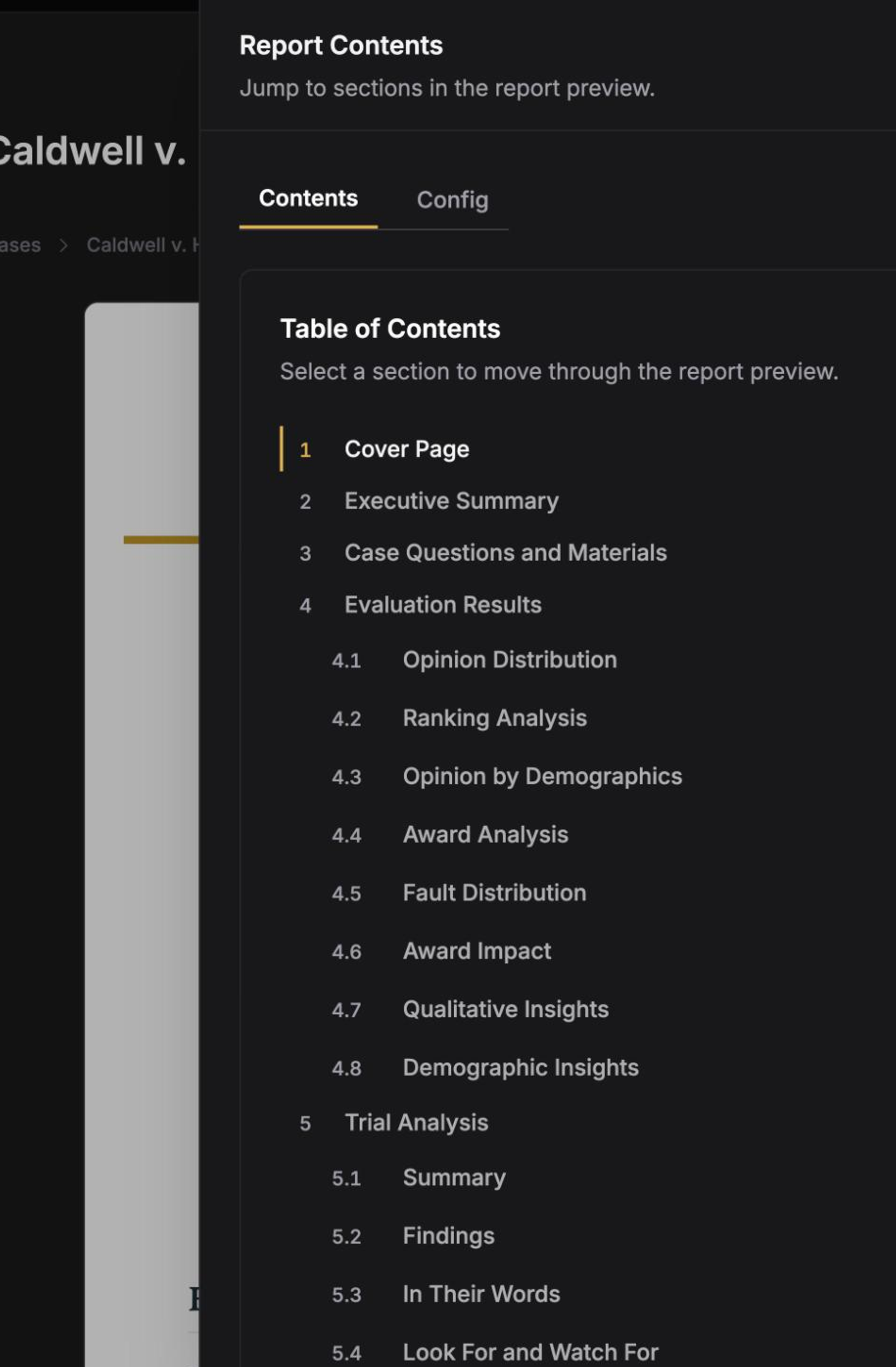
- Cover Page: the case title, a summary and key dates.
- Executive Summary: a summary written by AI for the reader you choose (Litigation Team, Client or External).
- Case Questions & Materials: your questions and materials, as evaluators saw them.
- Opinion Distribution: how answers to Scale and Percentage questions spread across the panel.
- Ranking Analysis: the average rank and the distribution for each item evaluators ranked.
- Opinion by Demographics: how each group responded to opinion questions.
- Award Analysis: the average award, the adjusted mean, the typical evaluator and the middle half of awards, with the full distribution.
- Fault Distribution: each party’s share of fault.
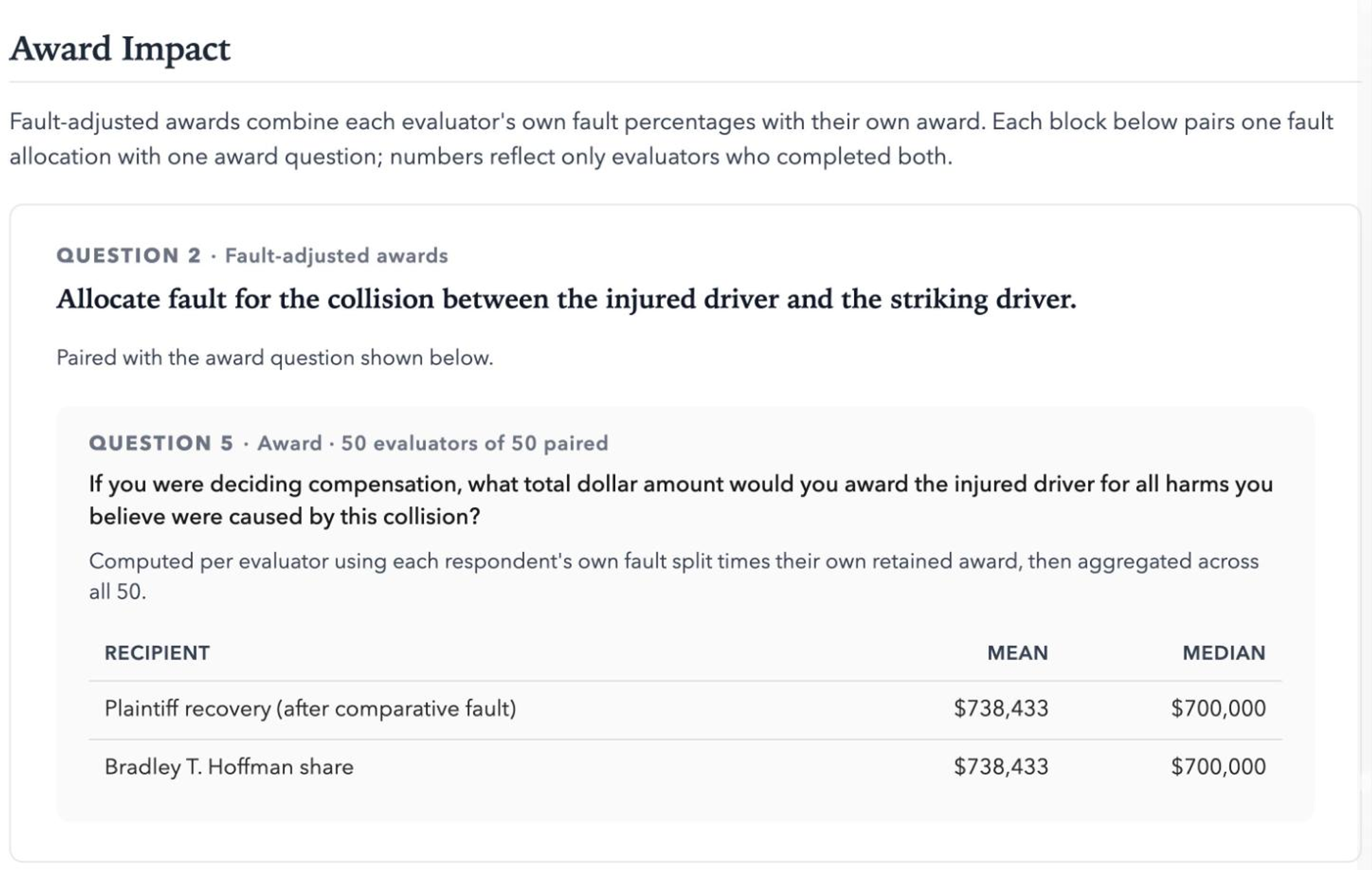
- Award Impact: each evaluator’s award reduced by the share of fault that evaluator gave the plaintiff, summarized across the panel.
- Qualitative Insights: themes from the written answers, question by question, with a count of how many evaluators raised each one.
- Demographic Insights: response patterns across groups of evaluators.
- Peer Influence: an optional follow-up on eligible Gold, Platinum and Elite cases.
- Trial Analysis: compares groups of evaluators who answered differently, quotes their written reasons and recommends what to address before mediation. Focus prepares it after the panel finishes on Gold, Platinum and Elite cases built with Focus Intelligence, and sends an email when it’s ready.
- Raw Responses Appendix: individual answers to the questions you include. You can include evaluator location and demographics separately.
What amounts did evaluators choose?
Start with Award Analysis. The median is the middle answer when awards are ordered from lowest to highest. The middle half runs from the 25th to the 75th percentile. How to read the award numbers explains each figure and which to lead with.
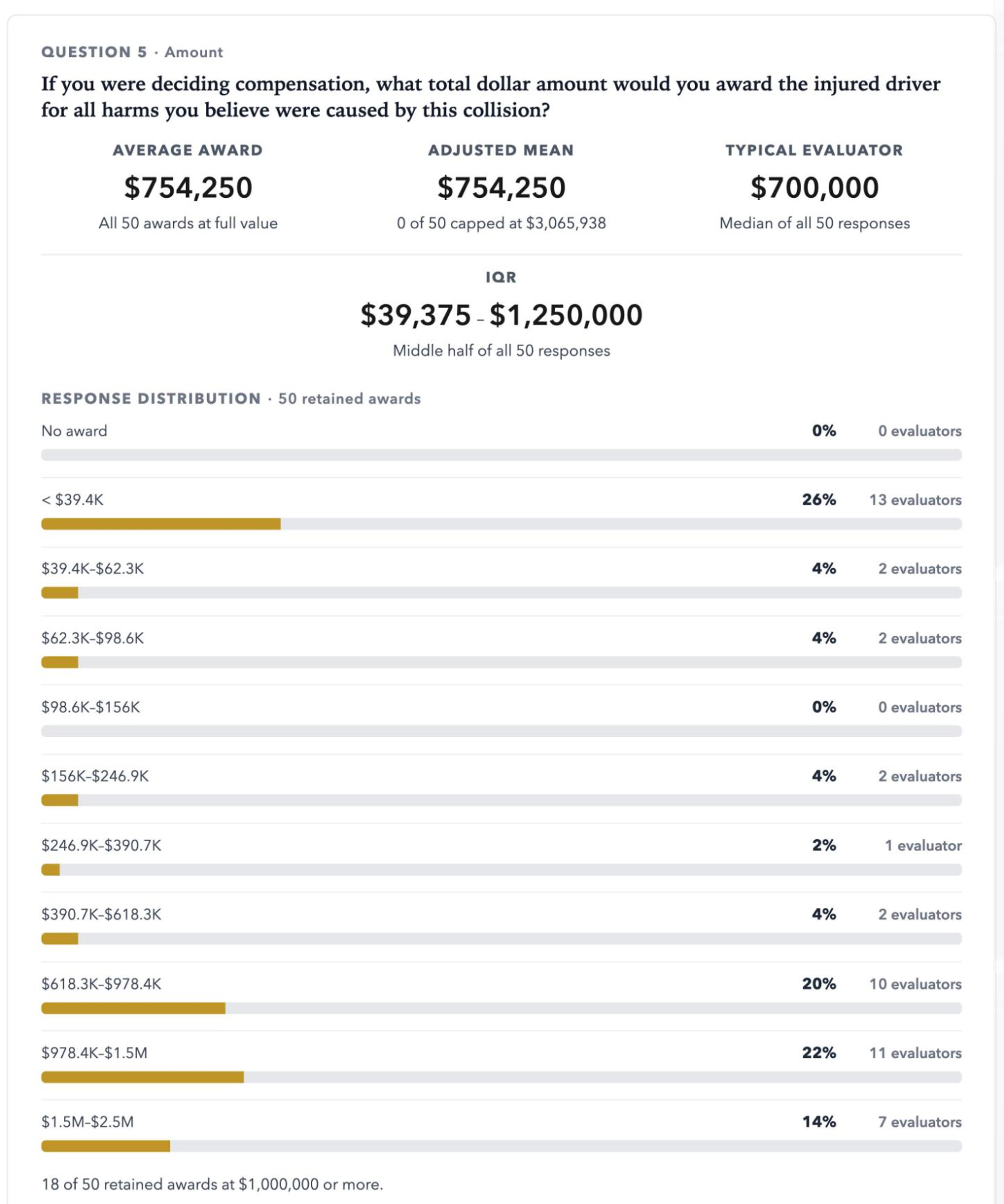
| Measure in the sample report | Result |
|---|---|
| Average award | $754,250 |
| Adjusted mean, the average after unusually high awards are capped | $754,250 |
| Median award | $700,000 |
| 25th percentile award | $39,375 |
| 75th percentile award | $1,250,000 |
| Average fault assigned to the plaintiff | 12% |
| Average fault assigned to the defendant | 88% |
Source: one sample Focus report, checked November 23, 2026. Fifty evaluators answered the Amount question; all 50 awards were kept, and none was capped. Fifty evaluators answered the fault question.
How does the panel’s fault split change its awards?
Fault Distribution shows how evaluators divided responsibility. Award Impact takes each evaluator who answered both questions, reduces their award by the share of fault they assigned to the plaintiff, and summarizes those results. Comparative fault in a focus group explains why that differs from multiplying two averages.
In the sample, the median award was $700,000 before and after fault, and the mean after fault was $738,433. Applying the average plaintiff share of 12% to the average award of $754,250 would give $663,740 instead. Use the paired figure when you describe what these evaluators awarded after fault.
Why did they answer that way?
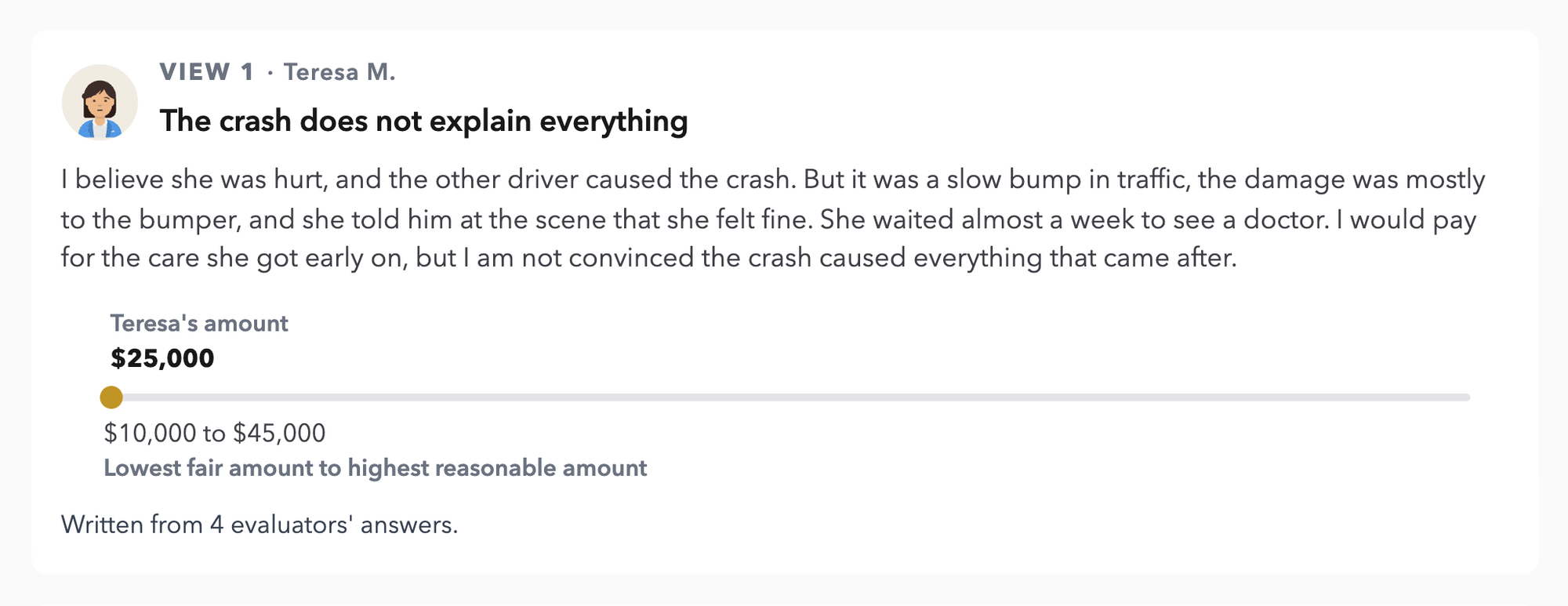
Qualitative Insights groups the written answers into themes and counts them. Open the Raw Responses Appendix to read the written answers behind a theme.
Peer Influence is an optional follow-up on eligible Gold, Platinum and Elite cases. Evaluators read short views drawn from the panel’s written reasons. When at least five evaluators provide both a first and a follow-up amount, the report shows which amounts rose, fell or stayed the same.
Which facts matter most?
Ranking Analysis shows how evaluators ordered the facts you gave them. Trial Analysis goes further: it compares groups of evaluators who read the same evidence differently and shows what each group awarded. In the sample, the 26 evaluators who rejected the low-impact explanation gave a median award of $1.2 million. The other 24 gave a median of $31,250.
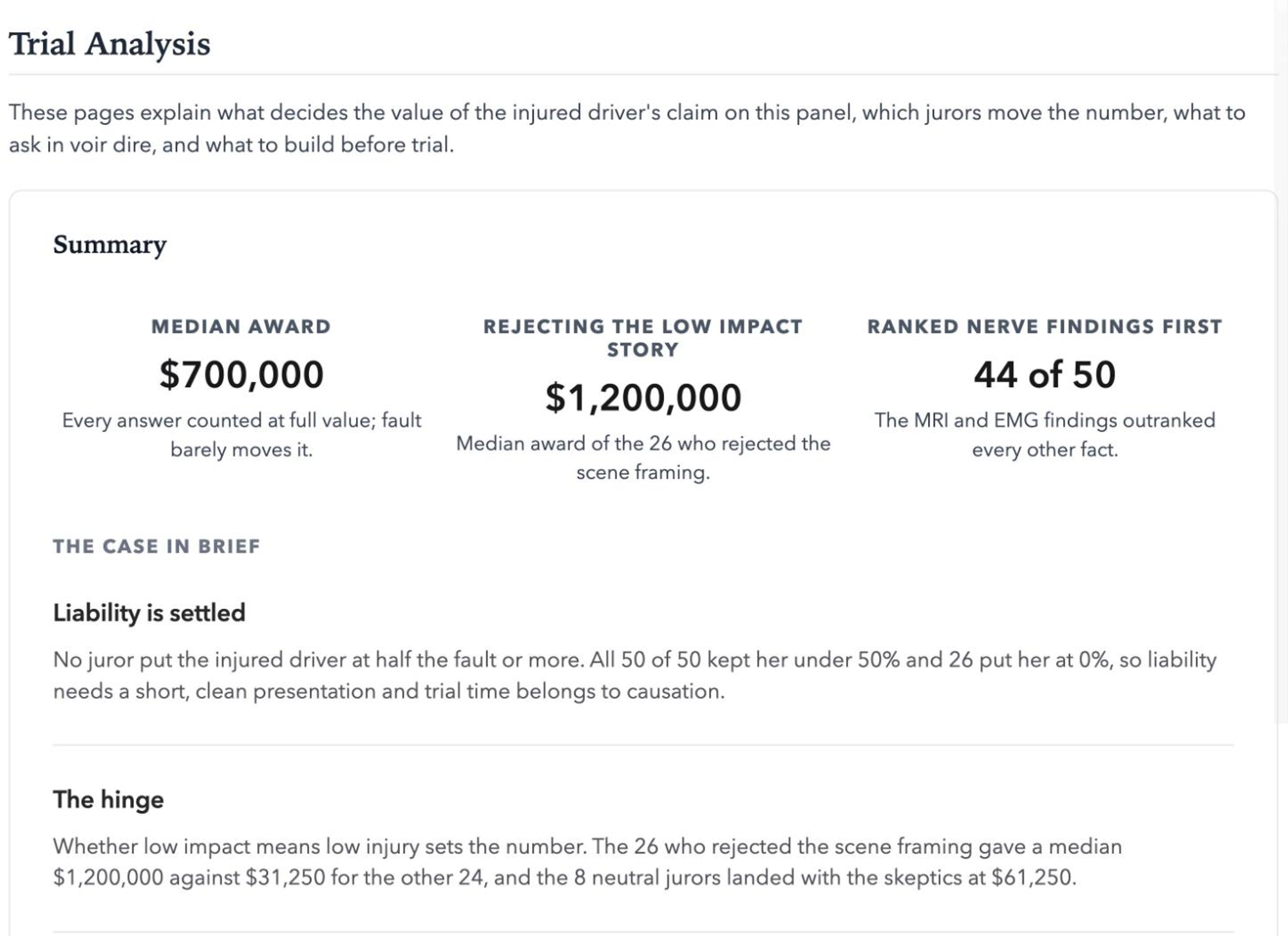
| Group in the sample report | Evaluators | Median award |
|---|---|---|
| Rejected the low-impact explanation | 26 | $1,200,000 |
| All other evaluators | 24 | $31,250 |
Source: one sample Focus report, 50 evaluators grouped by their answer about the collision, checked November 23, 2026.
The overall median of $700,000 describes neither group. For a mediation discussion, bring the evidence behind that disagreement along with the overall figure.
Choose the report audience
In the report, click Config. Under Audience, pick who the report is for:
- Litigation Team: the internal strategic view, with full analytics detail.
- Client: an accessible summary for the client.
- External: a neutral view for people outside your side, such as a mediator or an adjuster.
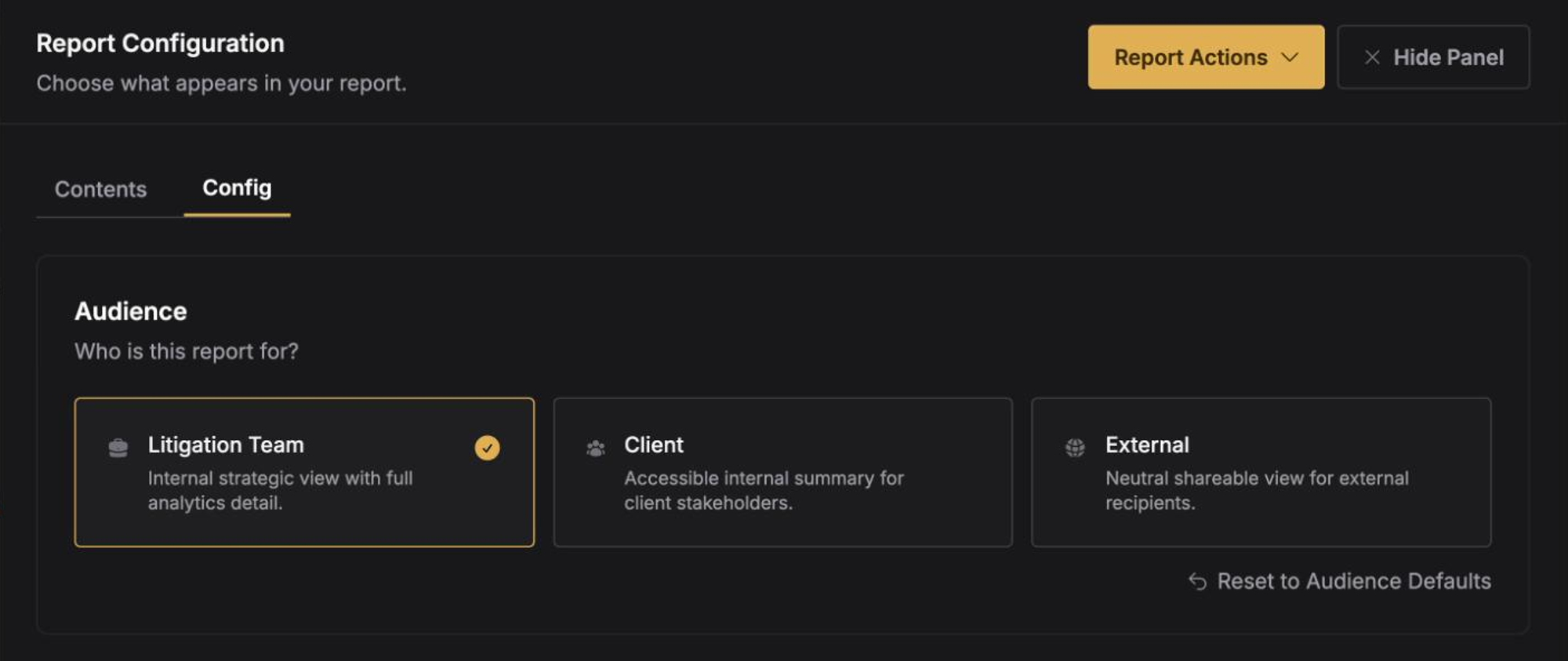
Each choice sets different defaults. The Executive Summary is written for the reader you pick, and some sections switch on or off. For example, the Raw Responses appendix is on for Litigation Team and External and off for Client, and Demographic Insights is on only for Litigation Team.
You can then change the sections, choose the questions to include, and pick left-aligned or justified text. The Fault Allocation switch controls both Fault Distribution and Award Impact. Hiding a question removes it throughout the report, including the appendix, and the Executive Summary is available only when all questions are included.
Save and share a report
You can share a report straight from Focus, without sending a PDF. You need to be an admin or editor in the organization that owns the report.
Save the version you want to send
Open Report Actions and choose Save As to save this configuration in Focus. Give each version a title that says who it’s for. The saved report goes into Reports in the sidebar. For a strategy report, click Save instead.
Share it
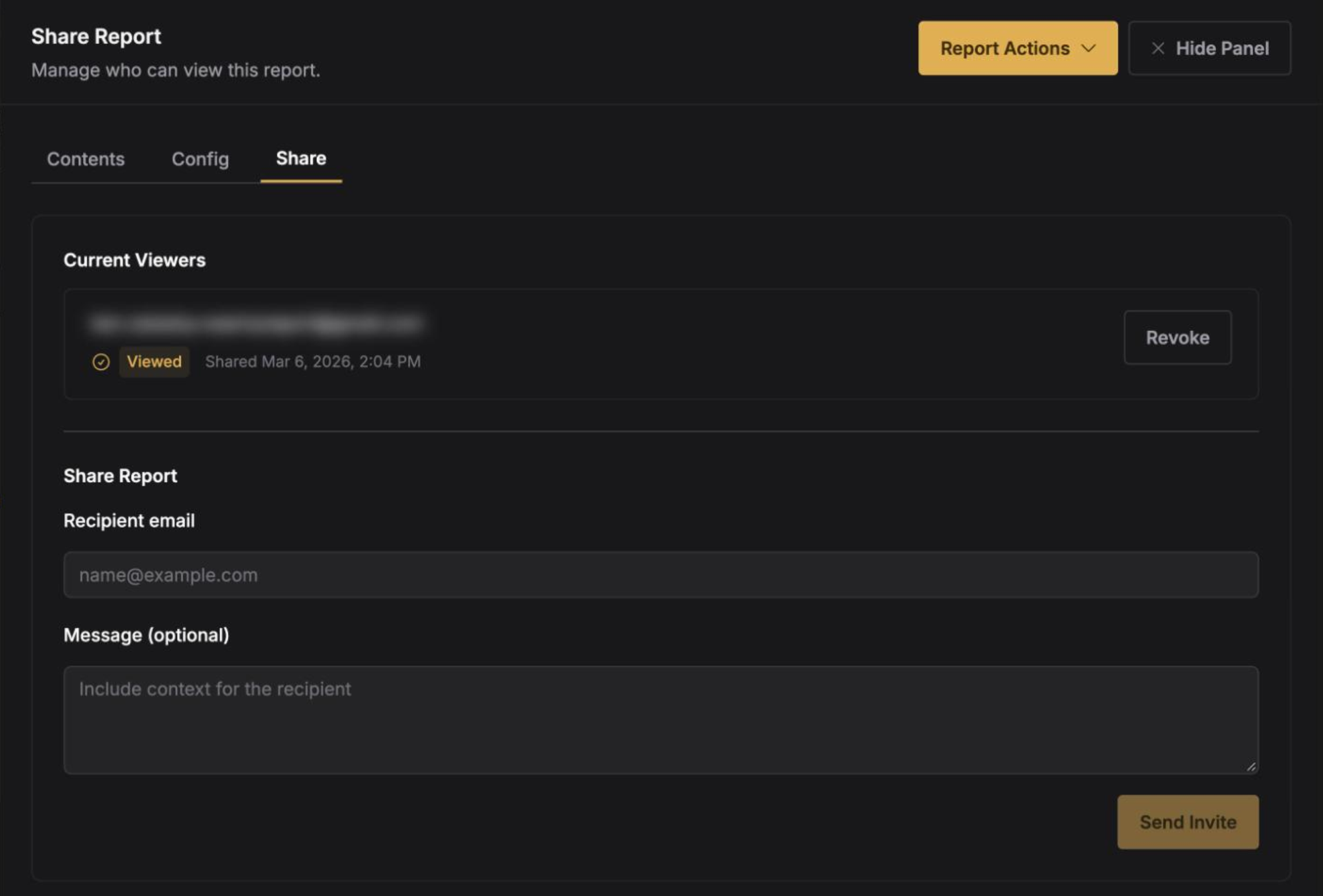
Open the saved report from Reports and go to the Share tab.
- Enter the recipient’s email address.
- Add a message if you like.
- Click Send Invite.
The recipient gets an email saying you shared a report with them on Focus. If they don’t have a Focus account yet, they’re asked to set one up first.
What sharing gives you that a PDF doesn’t
- See who opened it. In Current Viewers, Viewed means Focus recorded that recipient opening the report. Pending means Focus has no recorded opening for them. The date beside each person is when you shared it.
- End a recipient’s access. Click Revoke beside their email to close their access through that share. They can still use a PDF or attachments they already downloaded.
- Keep a version for each audience. Give the client and mediator versions distinct titles. When you use Save As on an existing report, leave Keep existing report viewers off to choose a new recipient list.
Save to PDF is still there when someone needs a file. Download Attachments saves the attachments included with the selected questions as a ZIP; the number beside the button tells you how many.
See Focus for attorneys for how firms use a panel before a demand or mediation, and the pricing page for what each plan includes.